
Changelog
What is new in each version of AntiPDF, newest first. The app shows the same notes on Home after an update.
1.3.7 November 2026
- Printing: Print any document AntiPDF opens without opening a window: antipdf --print FILE, with --printer, --copies, --range, --paper and --duplex. When AntiPDF is already open, it prints and its window stays as it is.
- Printing: Other programs can print through the automation port with a key you make in Preferences › Automation › Programs that print. A key prints only to the printers and from the folders you choose, within the pages and copies you allow, and every print it asks for is logged.
- PDF/A: A copy that needs a standard font the document did not embed now really embeds it, so the copy passes its check.
- Reading scans: The reading models you download are kept in a folder every Anti Softworks app shares, so each is downloaded once. Models you downloaded before are moved there.
1.3.6 November 2026
- Signing: Tools › Draw your signature… opens the signature pad at any time, also when you already have a signature from AntiMail.
- Signing: The signature pad opens in a large window of its own. Resize it and the writing area grows with it.
- Signing: A line starts only when you press on the writing area, with the mouse, a pen or a finger.
1.3.5 November 2026
- Spreadsheets: Excel workbooks (.xlsx, .xlsm, .xltx, .xltm) and CSV files open as pages you can read, print and save as PDF.
- Signing: A new signature pad, the same as in AntiMail. Choose the pen, ink and paper, and your signatures from AntiMail are here too.
- Signing: A drawn signature is placed as ink, sharp at any zoom and in print.
- Security: Programs AntiPDF starts are never taken from the folder you are working in.
1.3.4 November 2026
- Forms: Check boxes and radio buttons show the same state as in other PDF viewers, also in forms filled elsewhere.
- Forms: Clearing a ticked box leaves nothing of the tick behind, and ticks look the same before and after a click.
- Tabs: One open document now has its own tab with a close button. Turn it off in Preferences › Reading.
- Stability: AntiPDF frees all of its graphics memory when it closes.
1.3.3 November 2026
- Editing text: The Enter and Esc hint now sits beside the line you are editing, so it no longer covers the next line.
- Scanning: The scanner's settings stay where you scroll them, like every other list.
- Windows: Preferences and extra windows no longer stay white when their first picture could not be shown.
- Stability: Fixed a graphics problem that could happen with several windows or panels open.
- Windows: Print and other panels open again after a second document window was closed.
- Side panel: Notes and bookmarks no longer overlap after the panel is made narrower.
- Open dialog: In a narrow window the list keeps the file names readable.
AntiPDF 1.3.2 is on the AntiPDF page for Mac and, for Linux, on the Linux page; the Microsoft Store copy follows after Microsoft has checked it.
1.3.2 November 2026
- The Find documents list (Ctrl+Shift+F) now scrolls smoothly with a mouse wheel and a trackpad. It bounces gently at the ends of the list.
- Preferences, the side panel's lists and the file dialog stay where you scroll them. A group or row may be partly in view.
Version 1.3.1 is on the AntiPDF page for Mac and, for Linux, on the download page; the Microsoft Store update follows once the Store has reviewed it.
1.3.1 November 2026
Opening a scan no longer counts as changing it.
- Make scans searchable: A picture or scanned PDF with that setting on counted as changed once its text was read. Switching tabs, Find documents and closing then stopped with an unsaved-edits message and needed a second try; now they stop only for changes you made.
- Preferences: A long group, such as the fonts on the Fonts page, was hidden completely when it did not fit in the window, so the page looked empty. It now shows as far as it fits, and you can scroll to the rest.
AntiPDF 1.3.0 November 2026
AntiPDF 1.3.0 is the first release for Mac. It also adds friends, opens files and pictures from outside in a sandbox, and a live watermark preview.
-
Now on Mac
The menus sit in the Mac's menu bar. Download the signed disk image for Apple silicon and macOS 13 or later from the AntiPDF page.
-
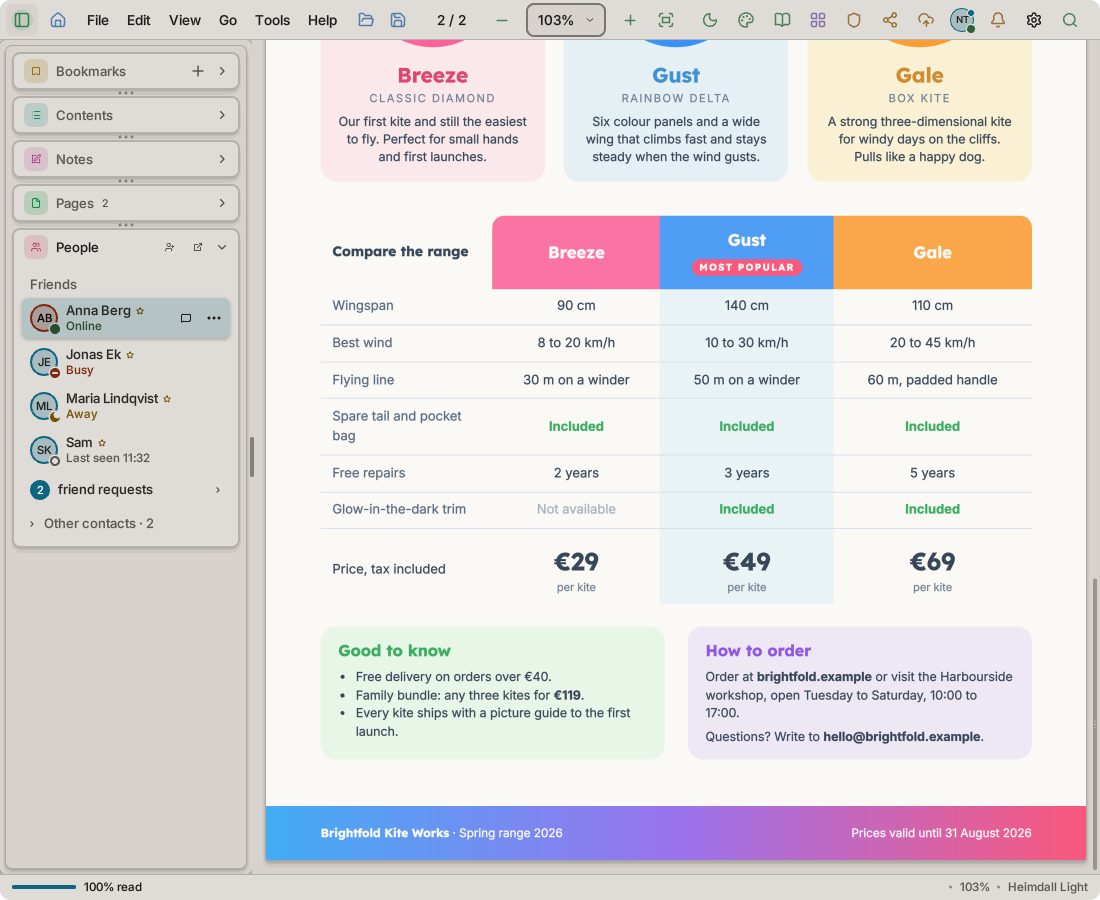
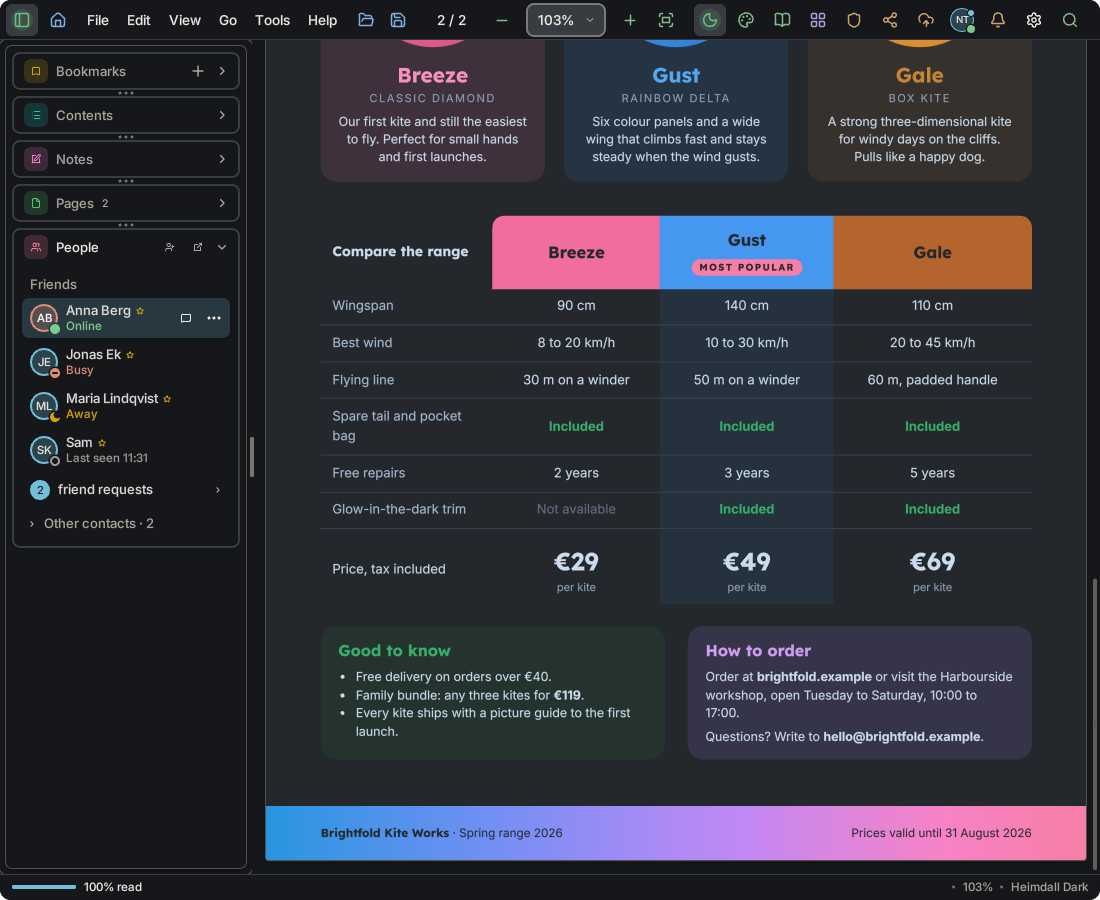
Friends and presence
Star a person to add them as a friend. See who is online in the People section, and invite them to the document you have open.
-
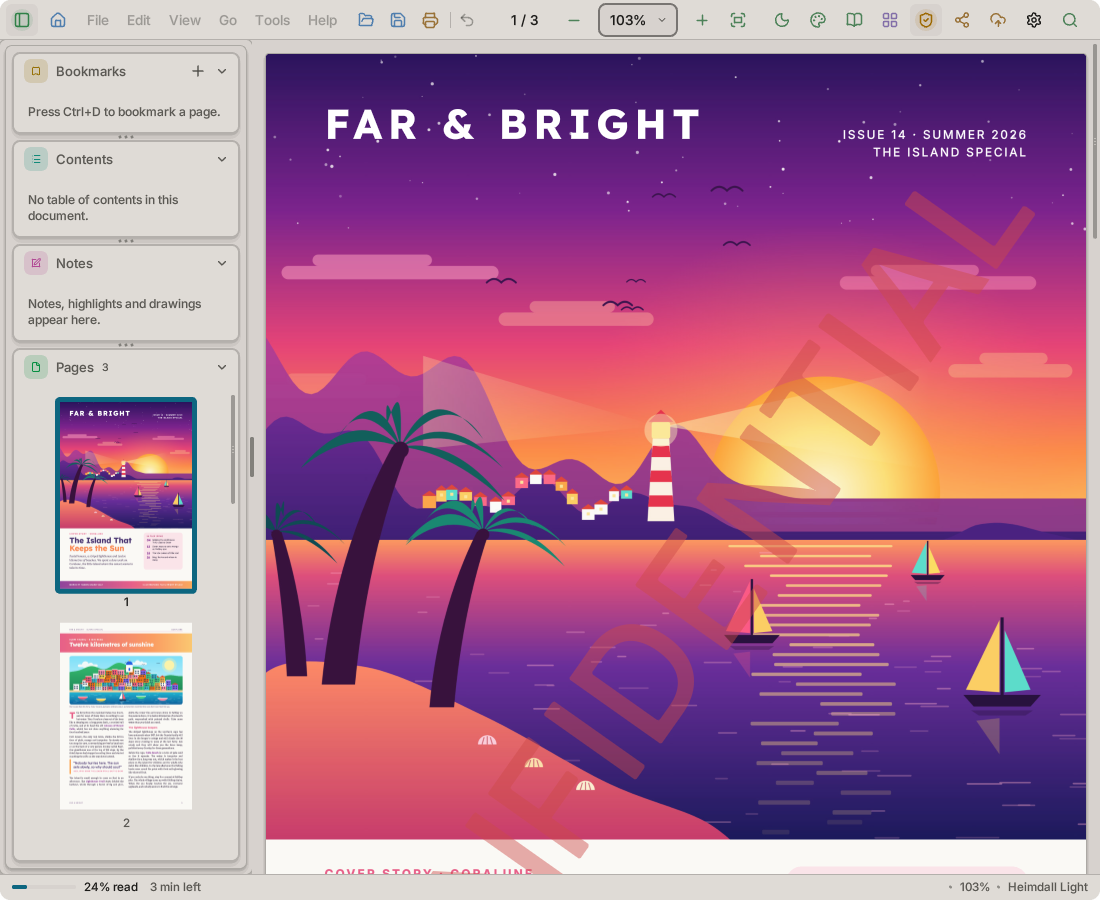
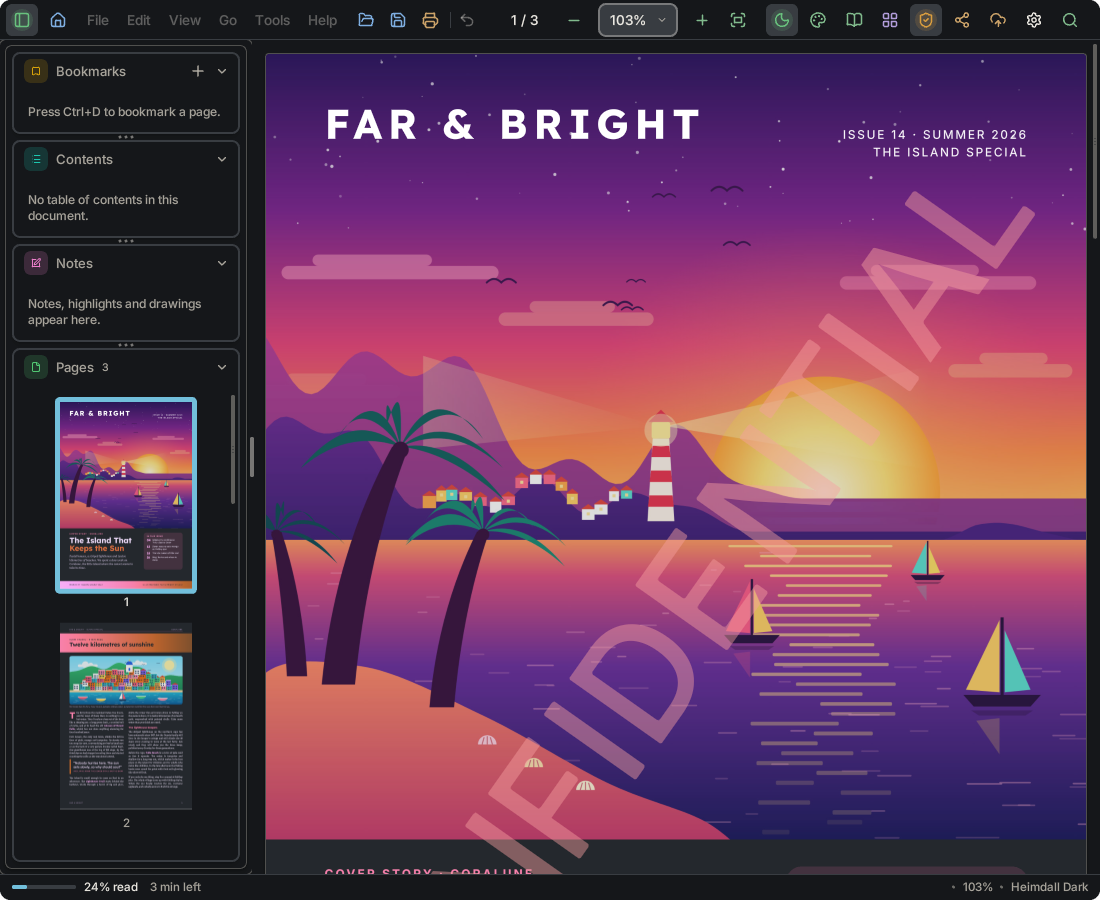
Watermark preview
Switch the preview on to see the watermark on the pages while you set it up. Nothing is written until you save a copy.
-
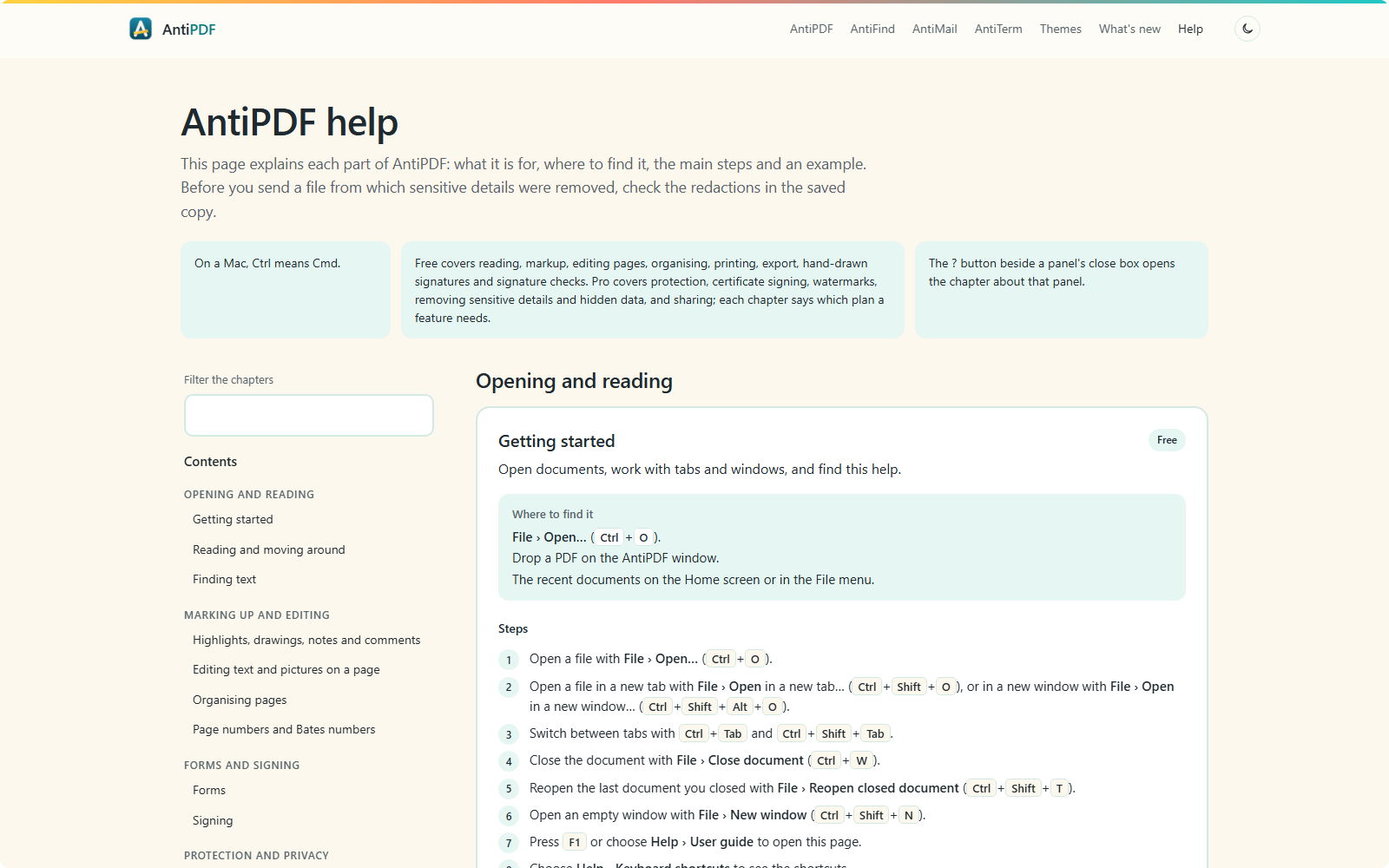
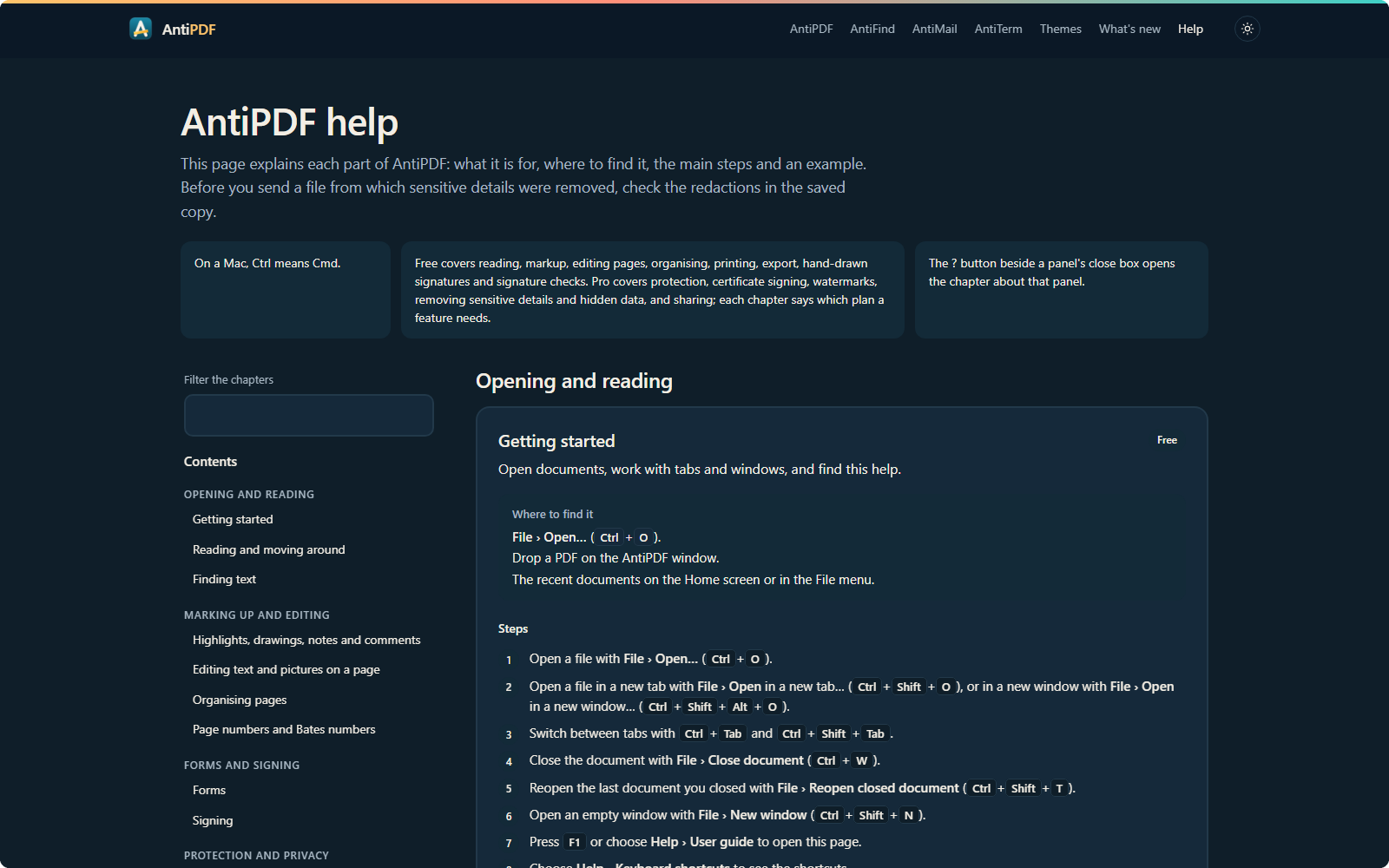
Help in chapters
Help › User guide and F1 open the new help page. Each chapter gives steps and examples.
- Friends: Star someone to make them a friend. In the side panel's People section, friends show first, with whether they are online, busy or away.
- Add a friend: Add someone by their Anti name or e-mail address. Share your own link so others can send you a friend request.
- Your status: Choose Online, Busy, Away or Invisible from your avatar in the top bar. Preferences say who sees you online, and when you show as Away.
- Invite: Invite a friend to the open document and its live session from their row, or drag them onto the page.
- Mentions: Type @ in the chat to mention someone. They are told in the bell.
- Leave: Leave a document shared with you, from its card on Home.
- Safer reading: Other formats are converted to PDF in a helper with no network and no access to your other files. Thumbnails, previews and pictures from outside are read there too. A PDF you open is checked there first, then read by AntiPDF; very large PDFs skip that check.
- Right to left: File names in Hebrew, Arabic and mixed scripts keep .pdf at their end in tabs, on Home and in the Open dialog.
- Settings: Every setting can also be read and changed from the command line, and applies at once.
- Redaction: Text and data under a redaction mark are now removed from the saved file in more cases. Some stayed before. Check the redactions in your saved copy.
- Watermark: A switch shows the watermark on the pages while you set it up. Choose All pages, This page or Some pages. Nothing is written until you save a copy.
- Editing: Text on a coloured panel now shows correctly while you edit it, in the panel's own colour.
- Notes and text boxes: Return finishes and closes them. Press a finished one to see its options, and press again quickly to type in it.
- Question cards: A card made from a note you typed now shows your words as its answer.
- Highlighter pen: Strokes no longer have a pale box around them.
- Side panel: Bookmarks and notes show as much as fits. Removing a bookmark keeps the rest in view.
- File types: On Linux, AntiPDF registers every file type it opens, and takes PDF files on its first start.
1.2.1 October 2026
AntiPDF 1.2.1 makes links and bookmarks land exactly on their target line, including links made by word processors such as Atlantis, pages with a shifted or cropped page box, and rotated pages. It adds two reading settings and fixes two display problems in the Notebook and Contacts panels.
- Links and bookmarks land exactly on their target line, including links made by Atlantis, pages with a shifted or cropped page box, and rotated pages.
- Keep the side panel closed: in Preferences › Sidebar, the side panel stays closed until you open it, and searching no longer opens it or shifts the page.
- Gap between pages: in Preferences › Reading, choose None, Small or Normal; with None the pages join as one continuous sheet.
- Notebook note cards keep a full-weight frame at the corners, and a selected note no longer has a coloured fill in dark themes; the Contacts panel no longer hides its top when you have no contacts yet.
Built with antilib-2026.10.2.
Version 1.2.0 is on the Microsoft Store and, for Linux, on the download page.
1.2.0 October 2026
AntiPDF 1.2.0 runs on Linux as well as Windows, with the same features. It adds Create PDF from…, document search, notes beside the page, review in chat, sounds and a renderer setting. Many faults are fixed, and damaged files can no longer crash it.
The highlights
-
AntiPDF for Linux
A .deb for Debian and Ubuntu, a package for Arch and CachyOS, or a plain archive. The same features as on Windows.
-
Create PDF from…
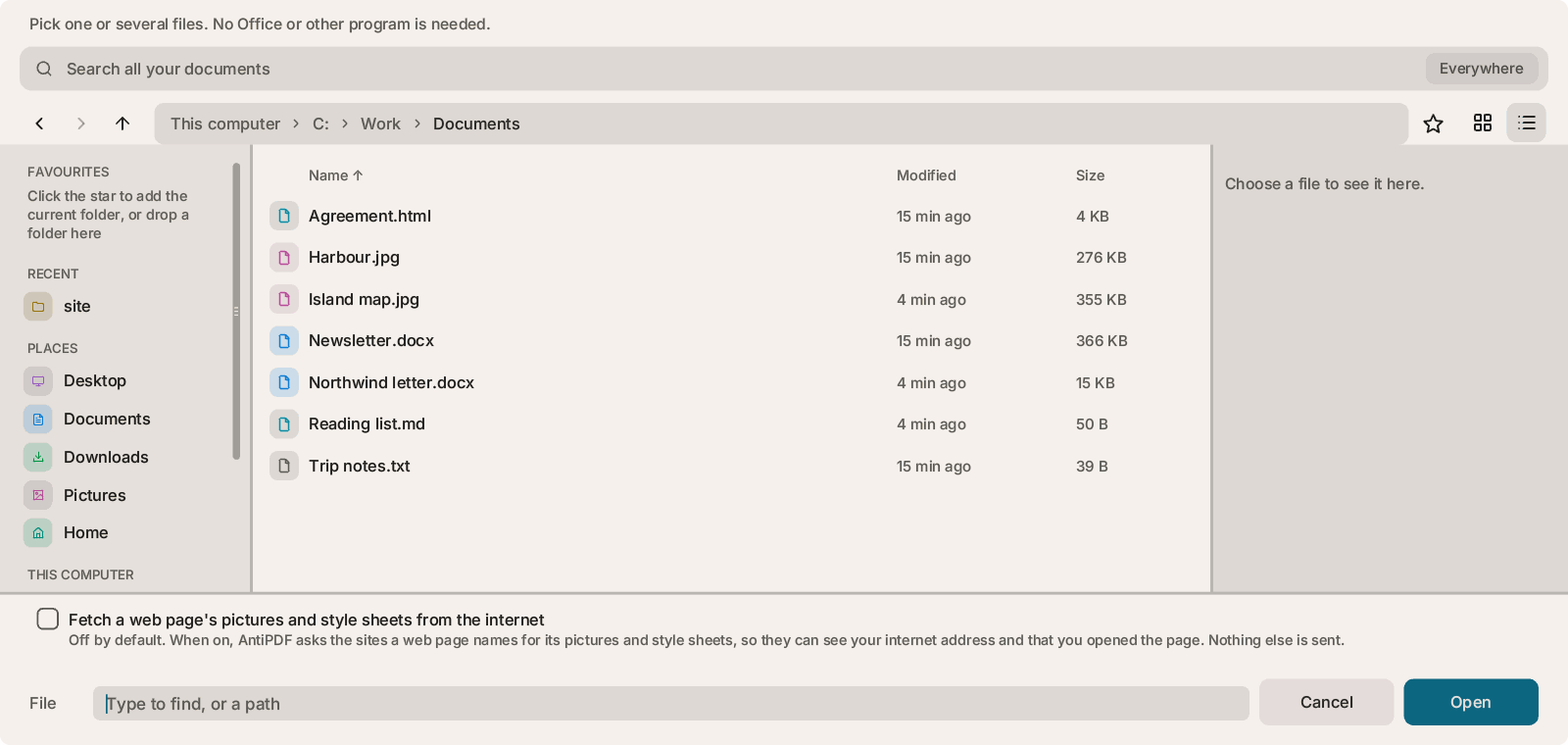
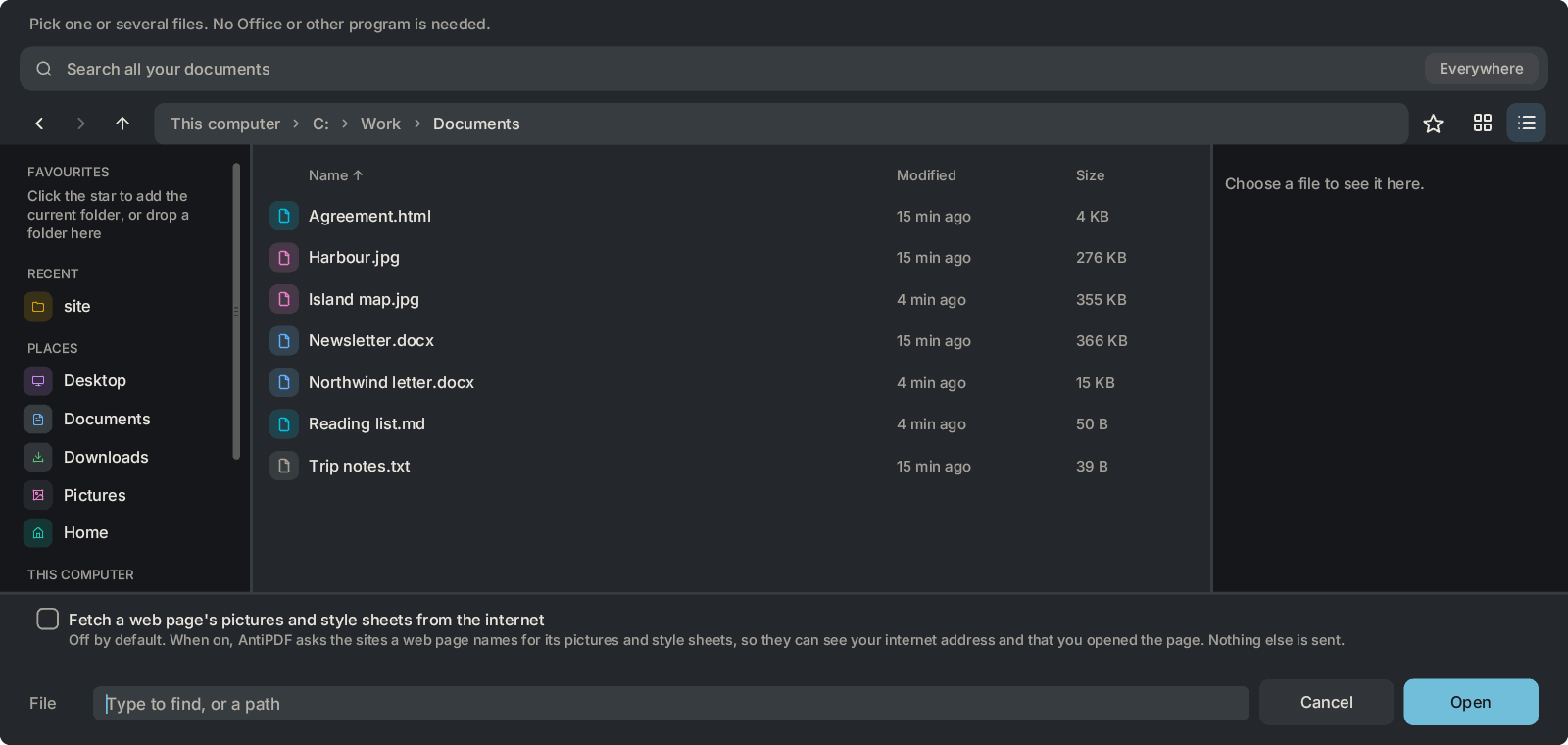
Turn Word, RTF, OpenDocument, ebooks, pictures and comics into PDFs, one or many at once. No Office or other program is needed.
-
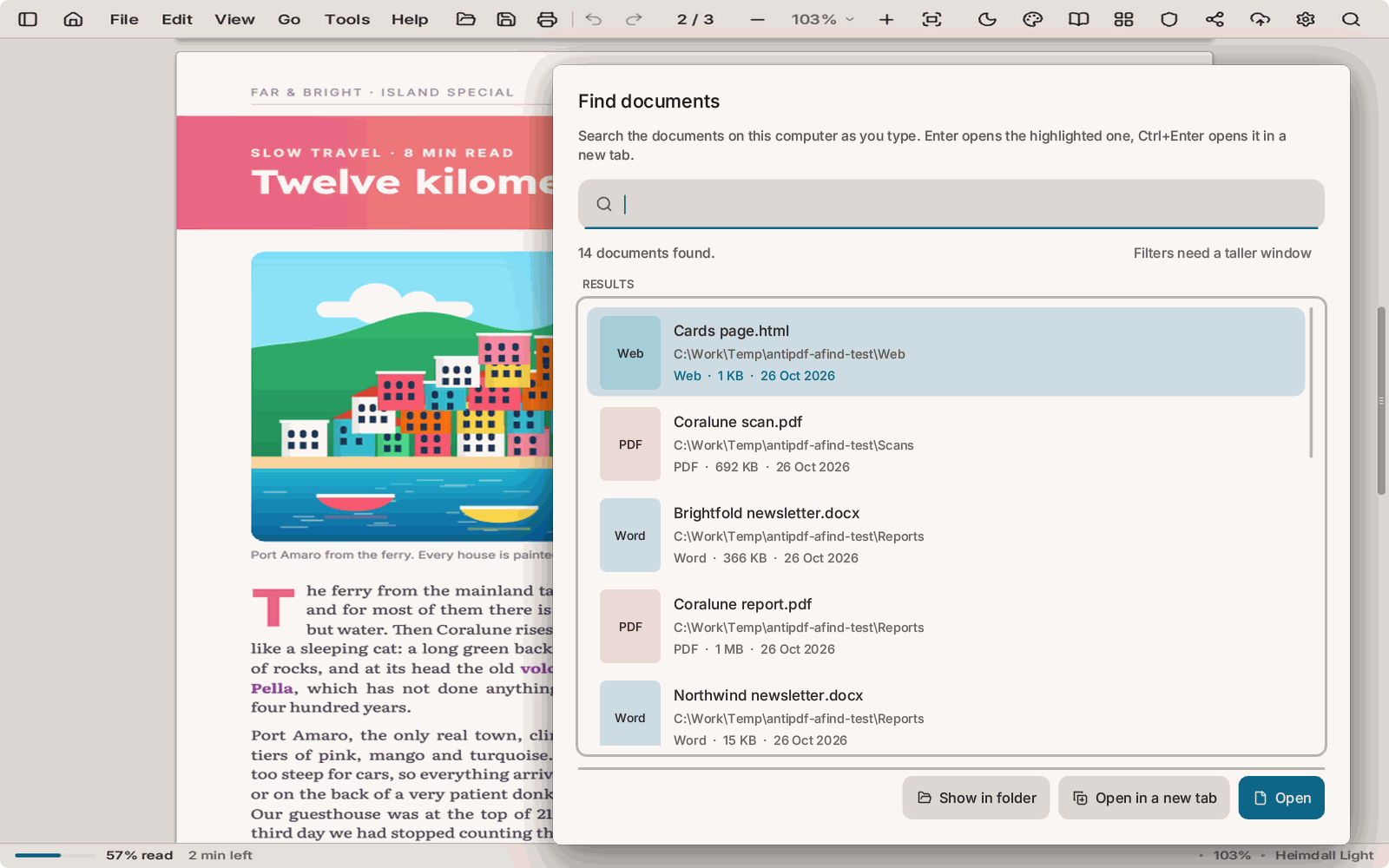
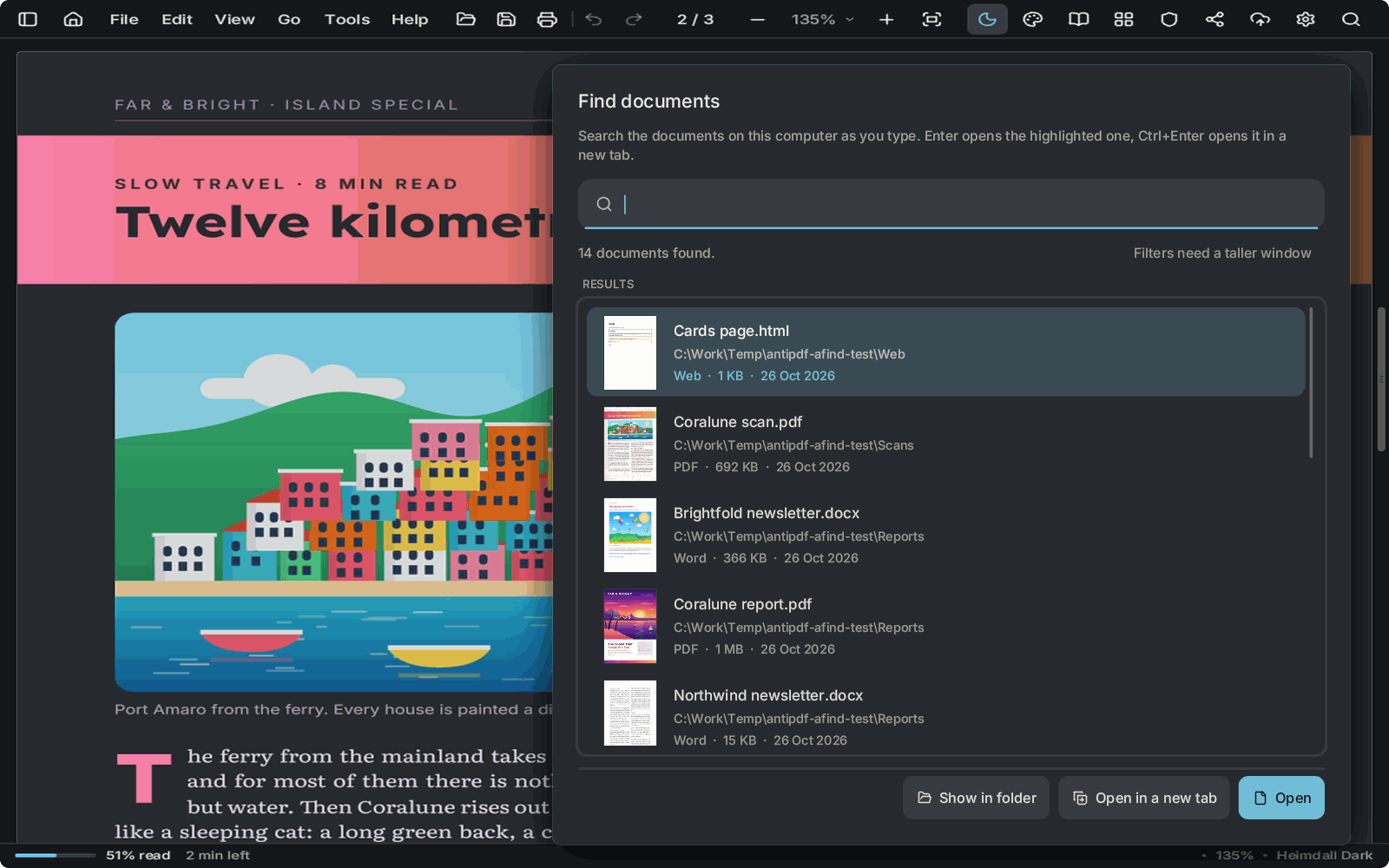
Find documents
Search your documents by their words from File › Find documents, the Open window or Home. The index stays on your computer and never downloads cloud-only files. It can be turned off in Preferences.
-
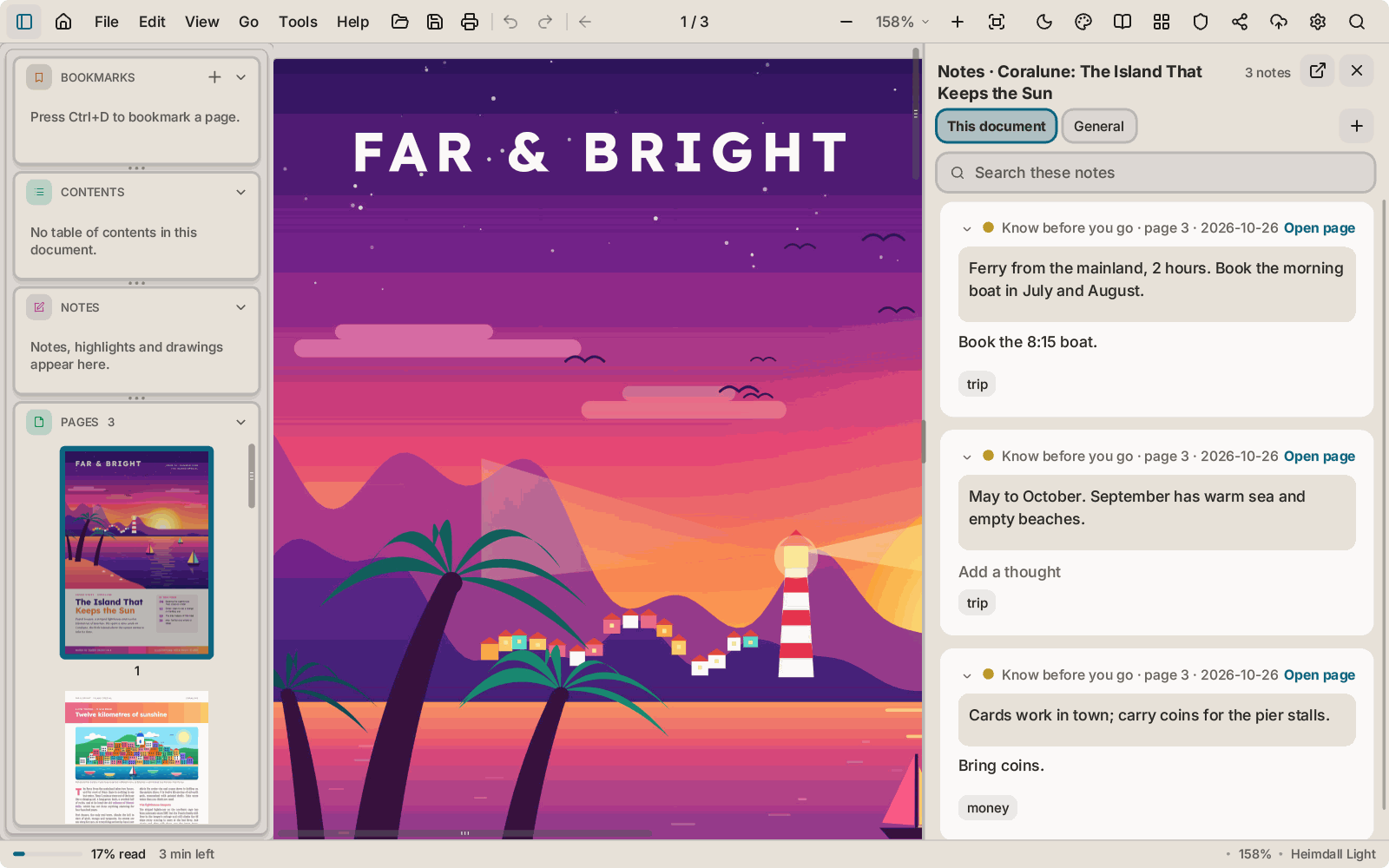
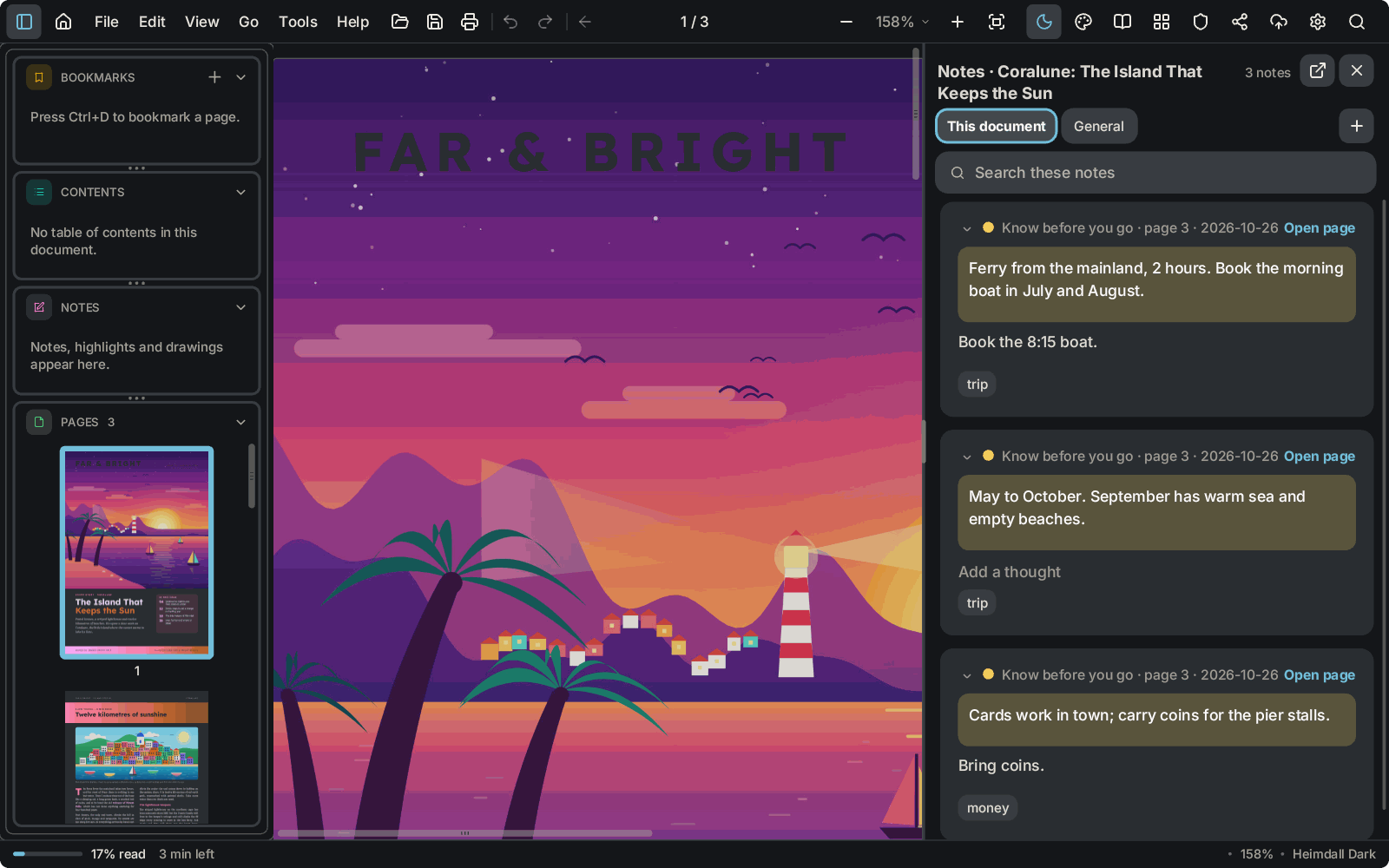
Notebook beside the page
Keep notes next to a document, capture text and pictures from it, and see them again next time.
-
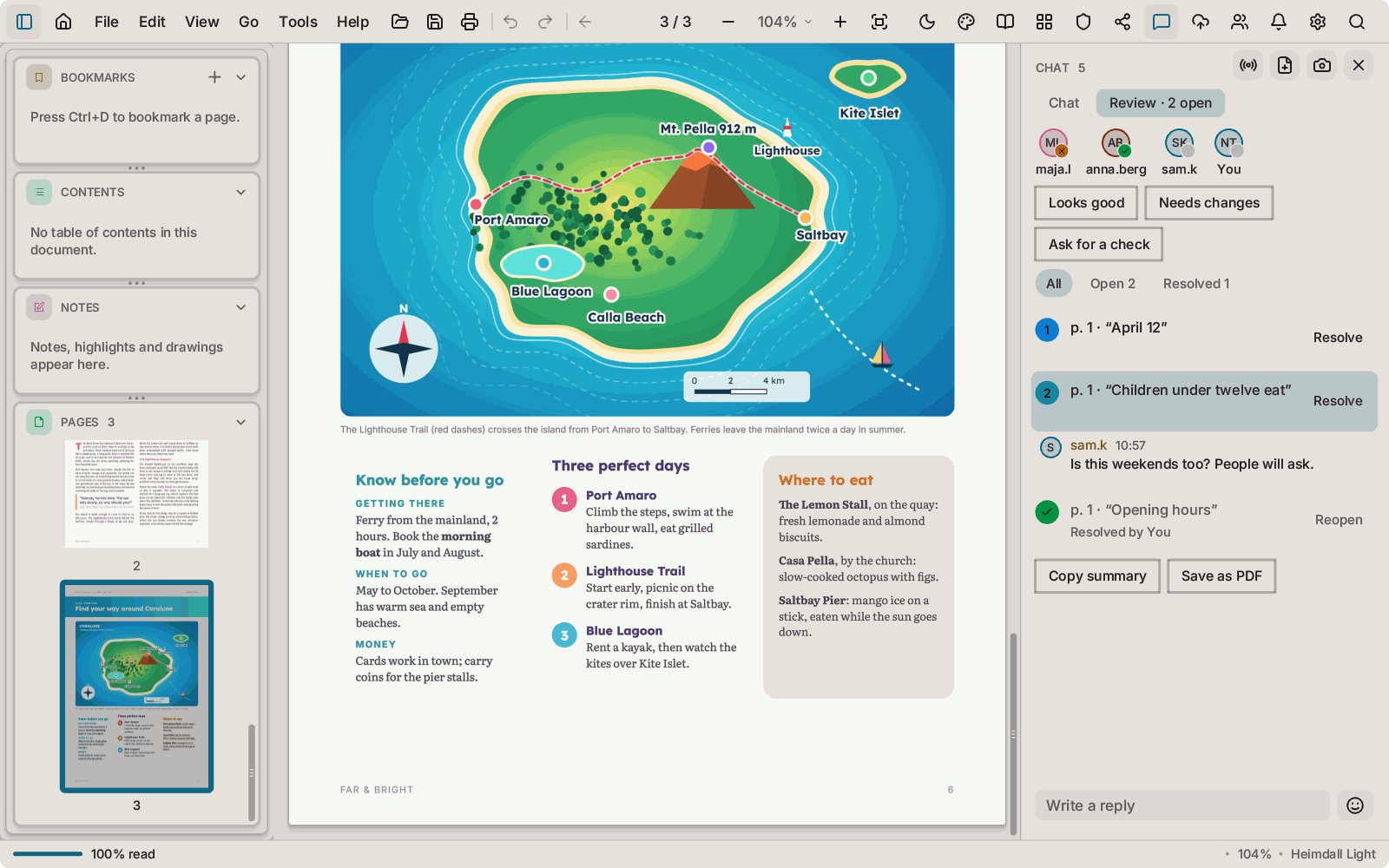
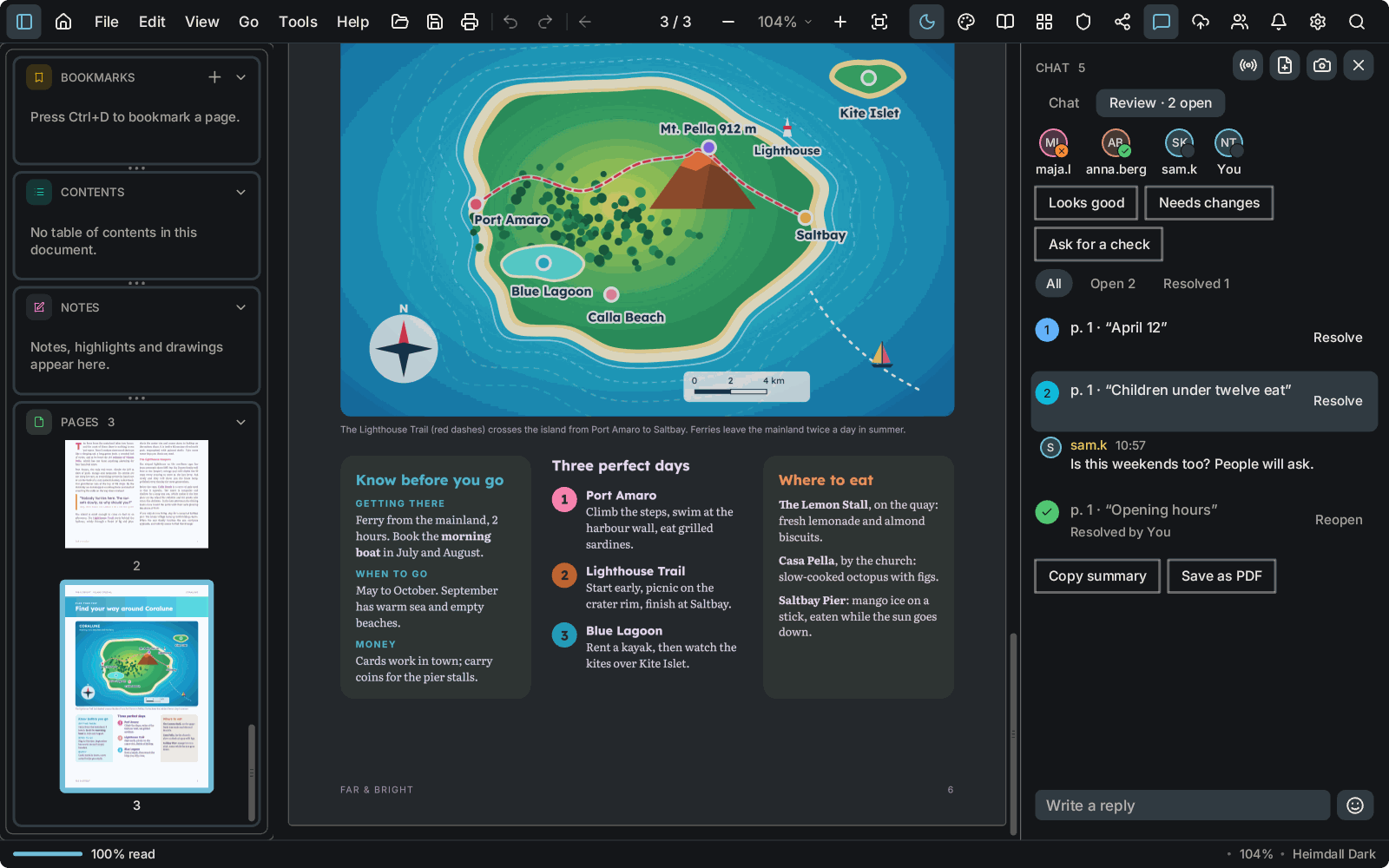
Review in chat
Ask someone to check a document. They answer "Looks good" or "Needs changes", with comments, in a Review tab beside Chat.
-
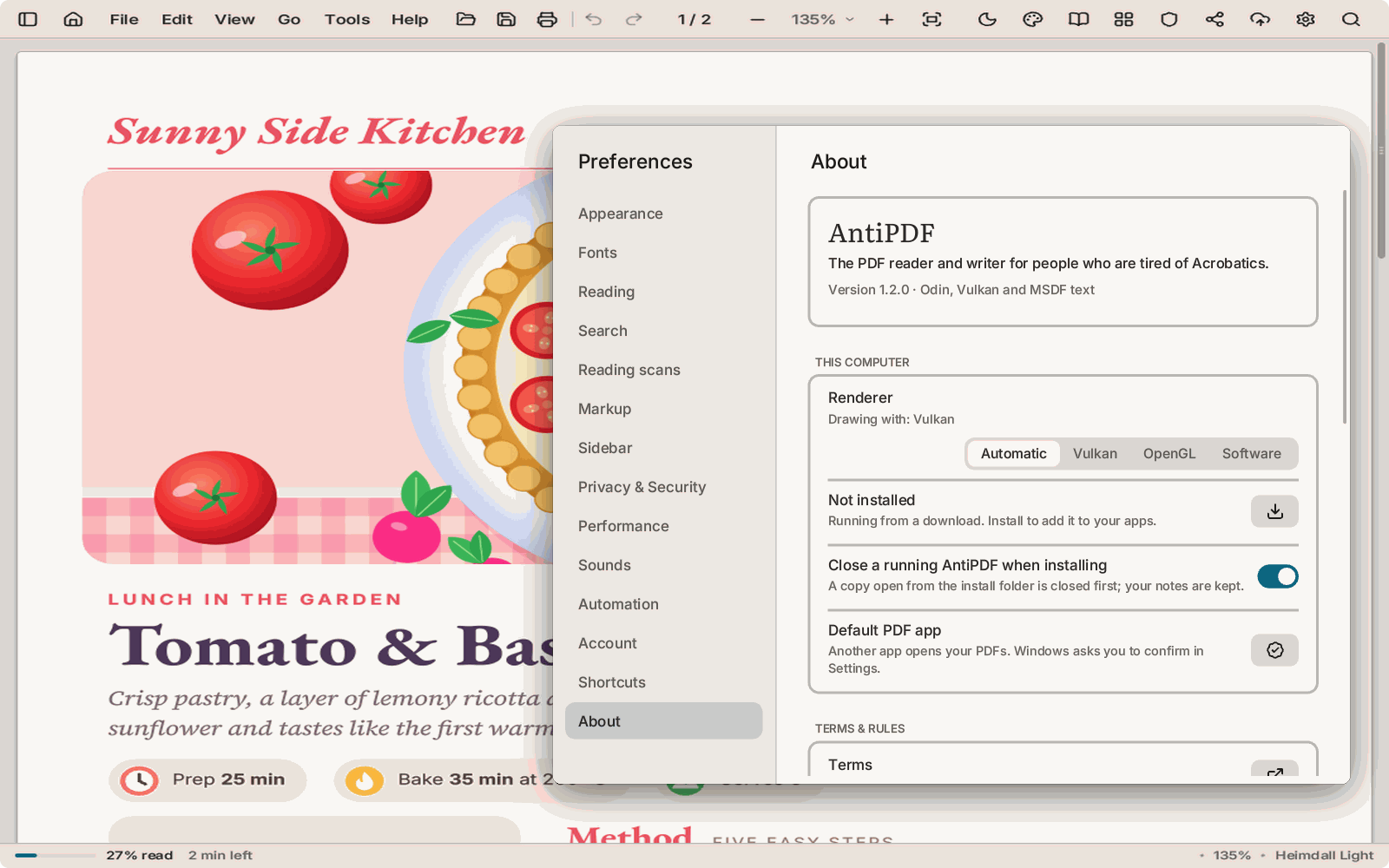
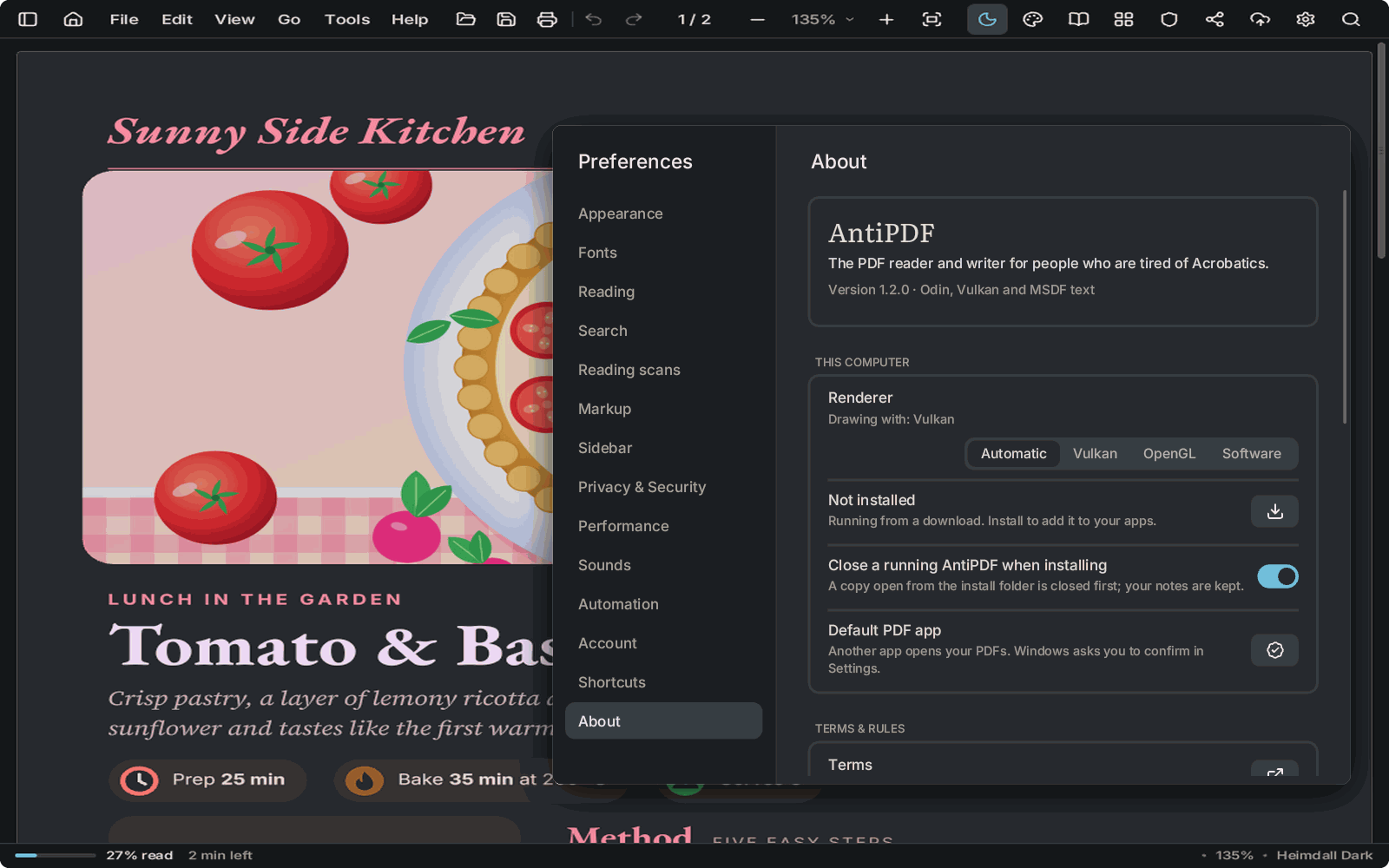
The renderer setting
Preferences chooses how AntiPDF draws: Automatic, Vulkan, OpenGL or Software (the processor). Automatic picks the best that works on your computer.
Also new
Printing
- Print privacy filters now count only real matches, and the hidden-items line lists each hidden item by kind, page and masked excerpt; selecting one shows it in print preview.
- Privacy filters now also black out matches when printing booklets, multiple pages per sheet, and step-and-repeat or cut-stack sheets.
Built with antilib-2026.10.2.
1.1.5 October 2026
The biggest update so far: it runs on older computers without a graphics card, and adds several windows, Word documents, comics, compress and PDF/A, redaction lists, Bates numbering, Preflight, Inspect, accessible PDFs, colour emoji in chat and your own themes.
The highlights
-
Runs on older computers
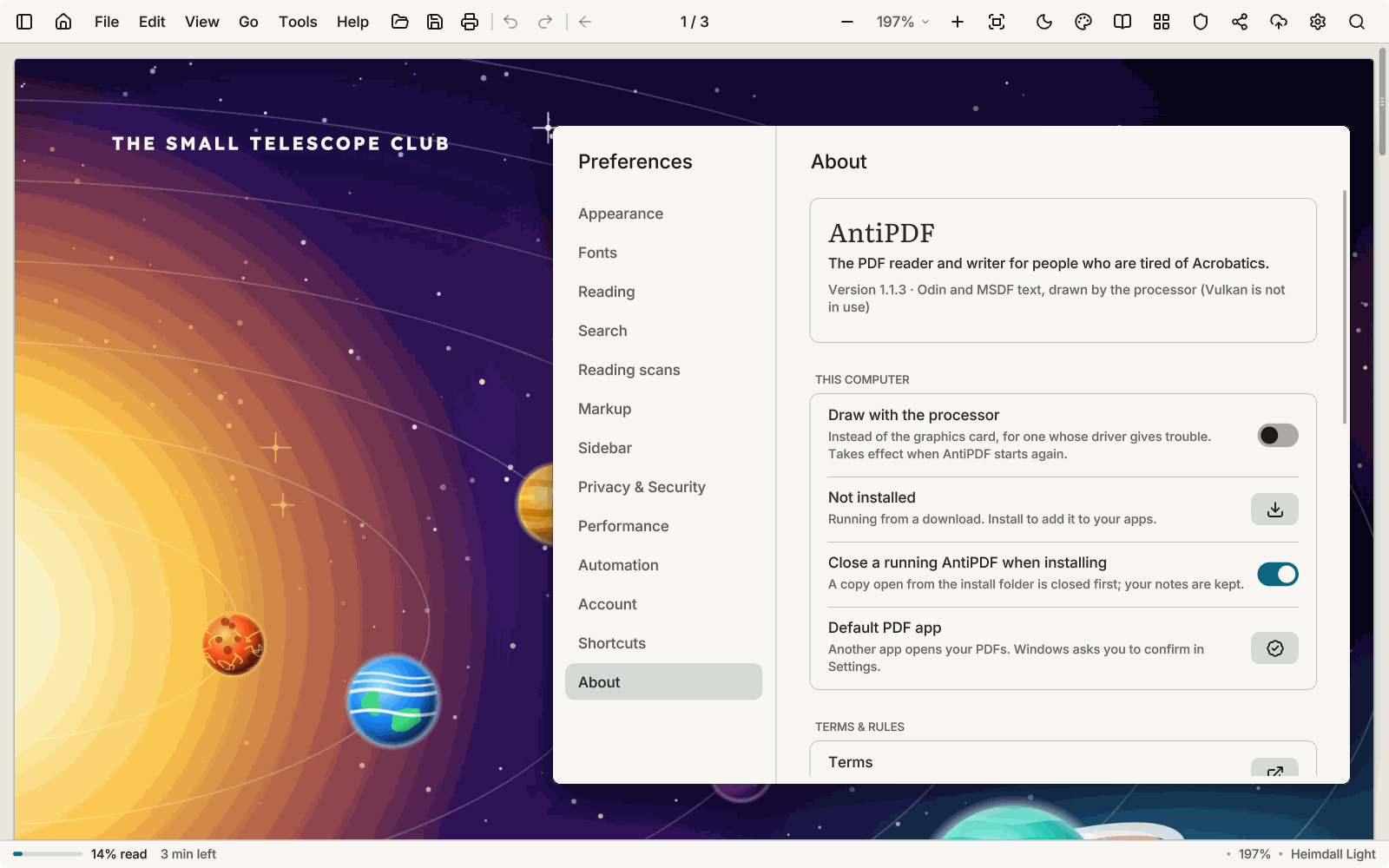
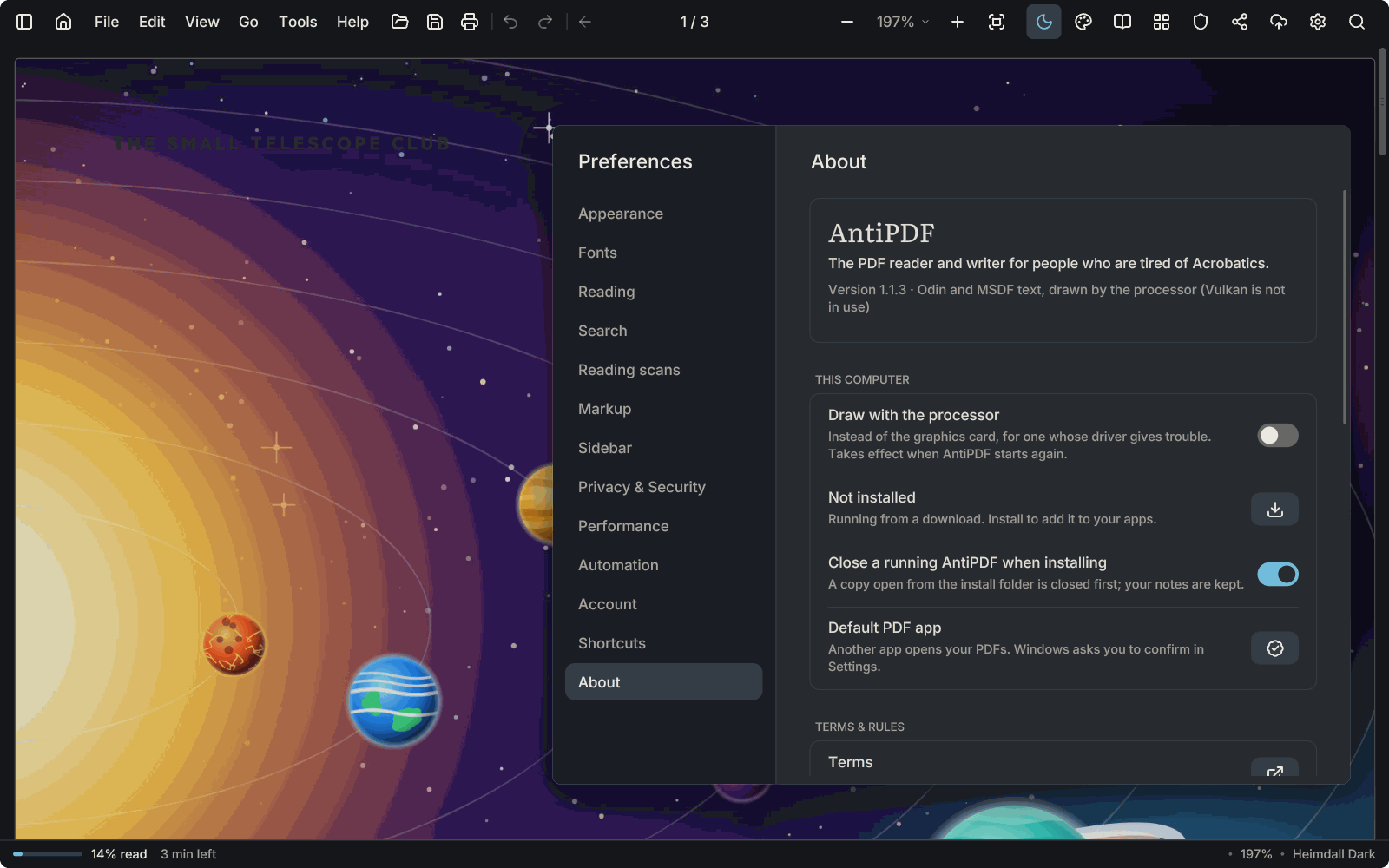
Without a usable graphics card or driver, AntiPDF now draws everything with the processor instead of closing, so old laptops and desktops that could not run it before can use it, down to computers without AVX2. If a computer is very slow, you can turn off smooth scrolling and zoom in Preferences.
-
Several windows and tear-off tabs
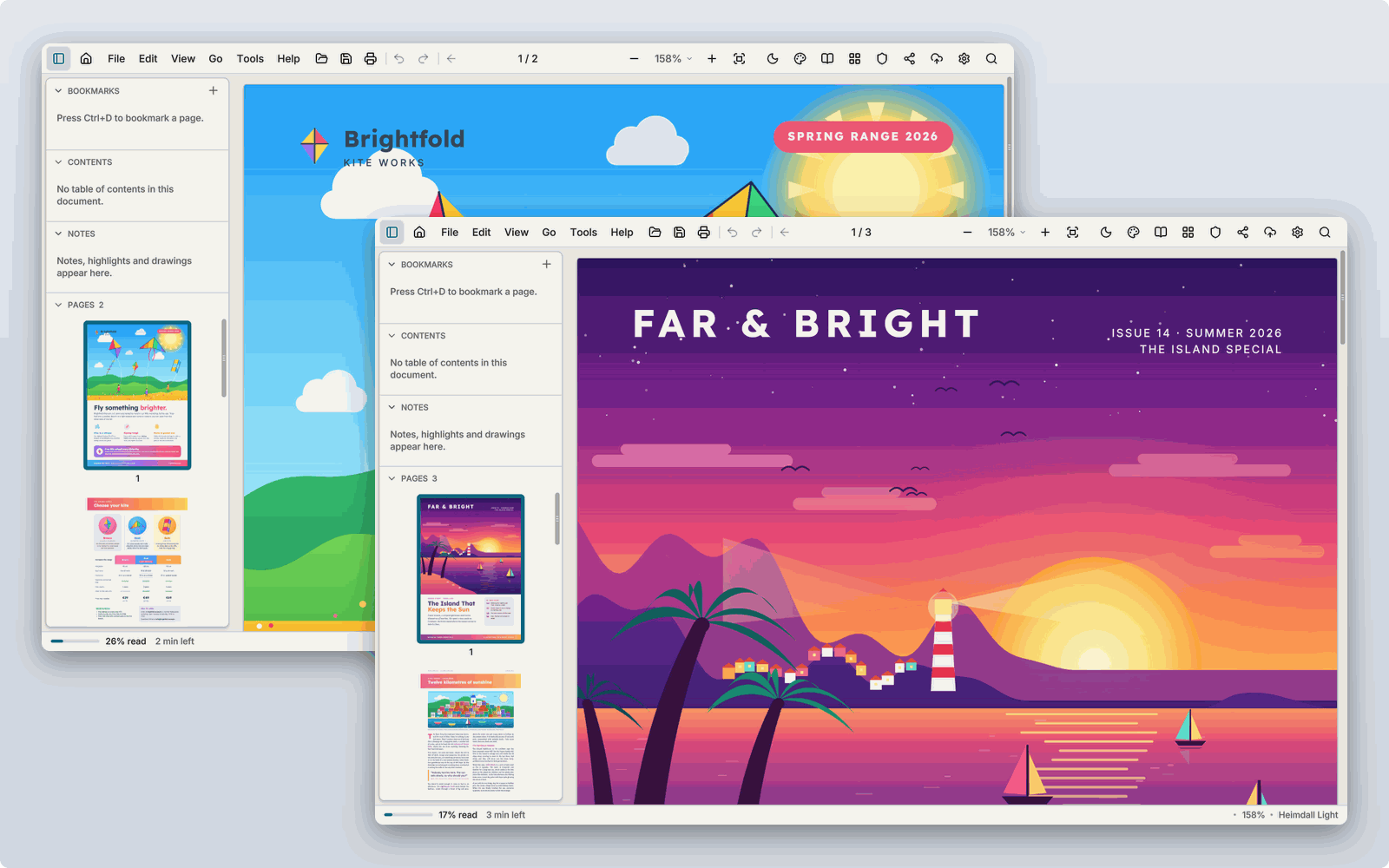
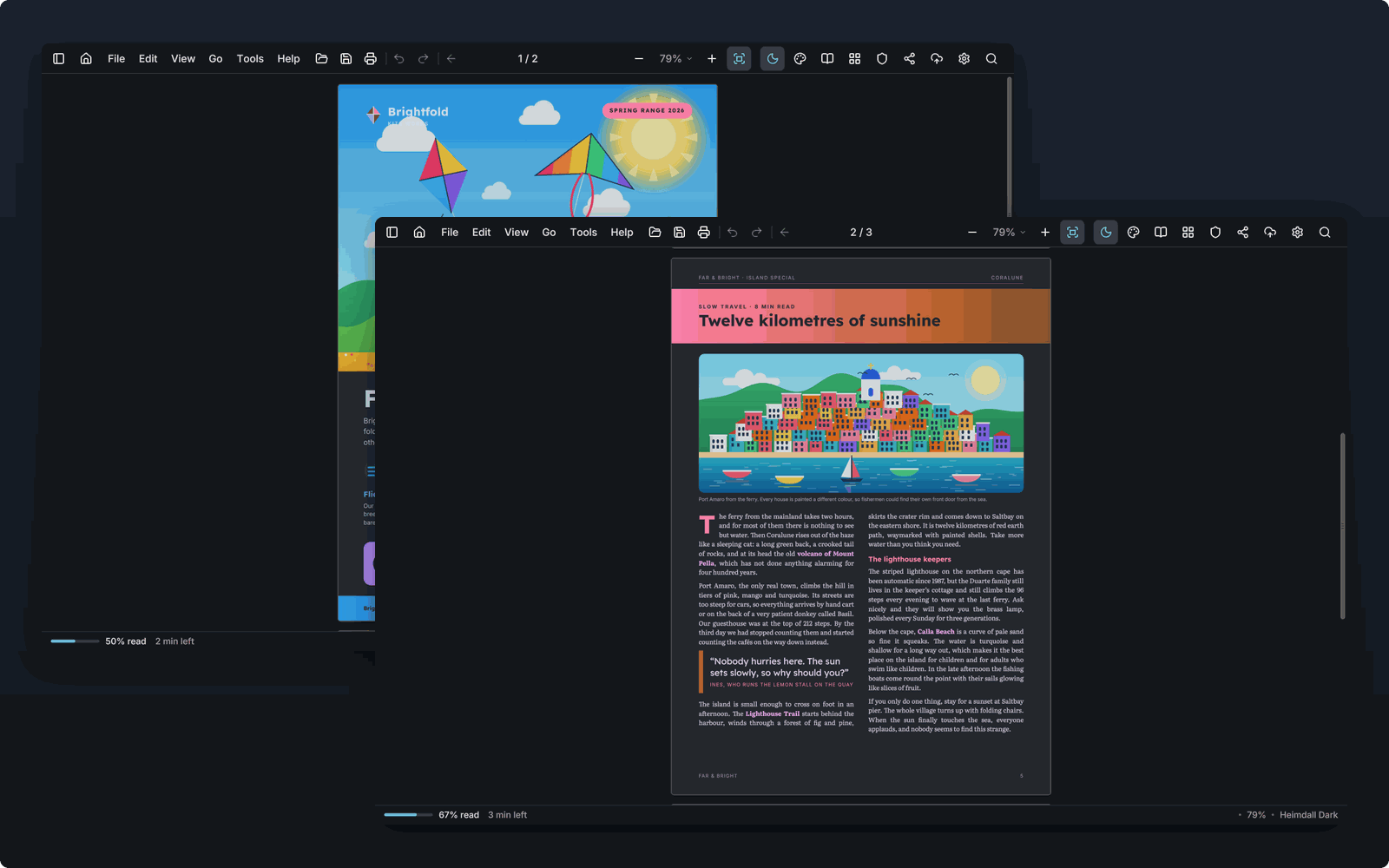
Drag a tab out of the strip and it becomes a window of its own, drag it back to rejoin. Put two documents on two monitors and link their scrolling to compare them.
-
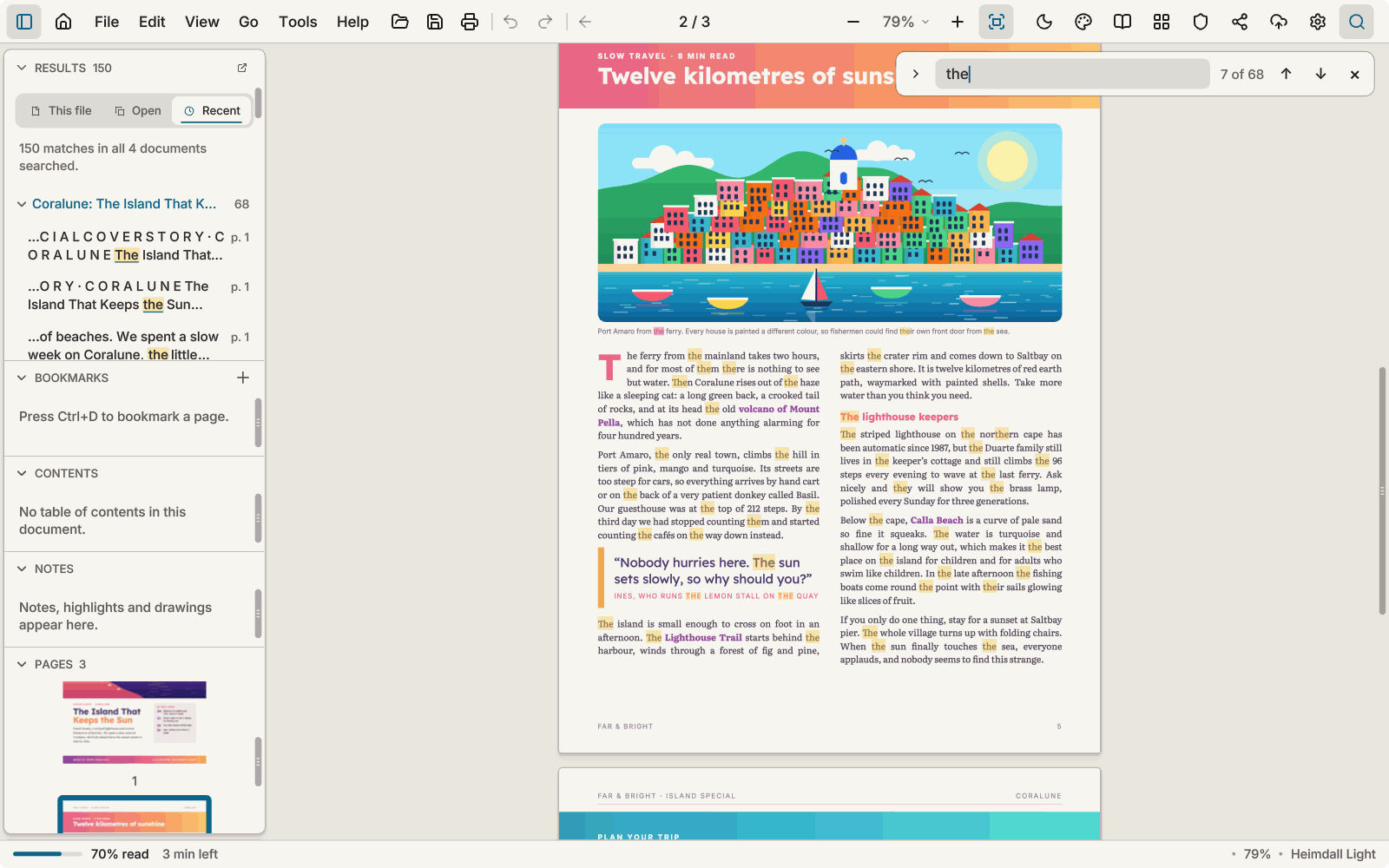
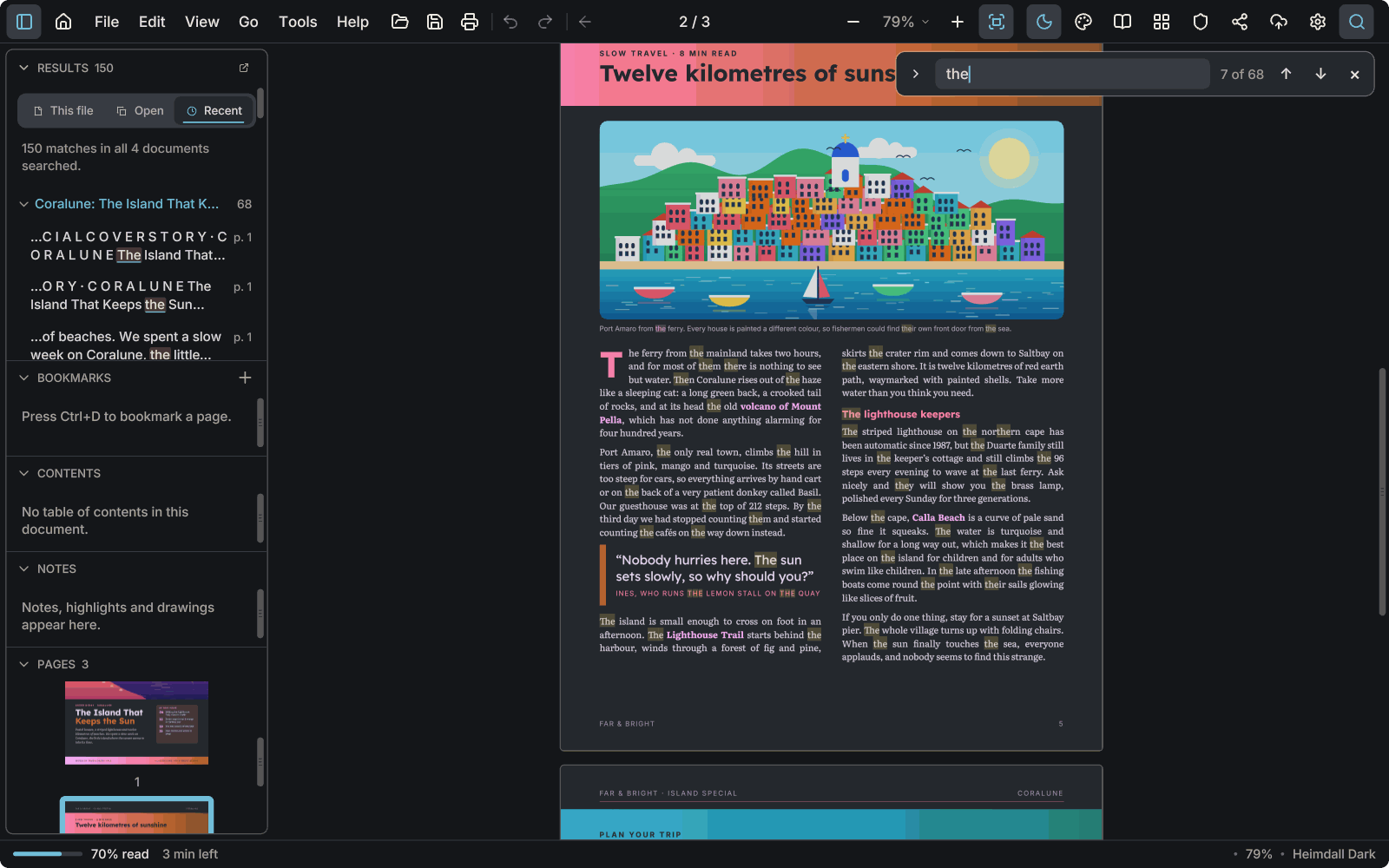
Search results as you type
A list of every match with the words around it sits in the left panel, so you can see where a term lives before you jump to it.
-
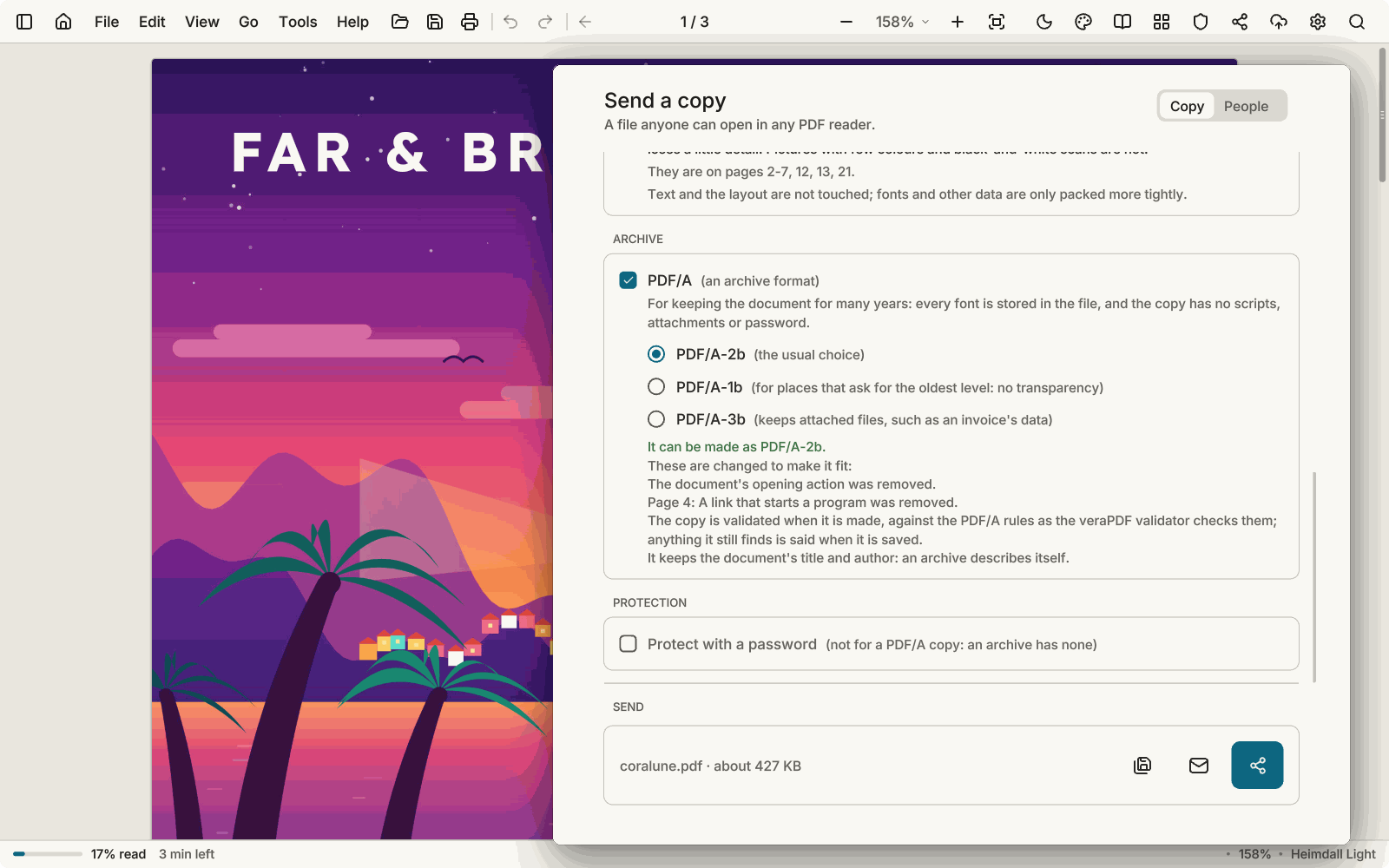
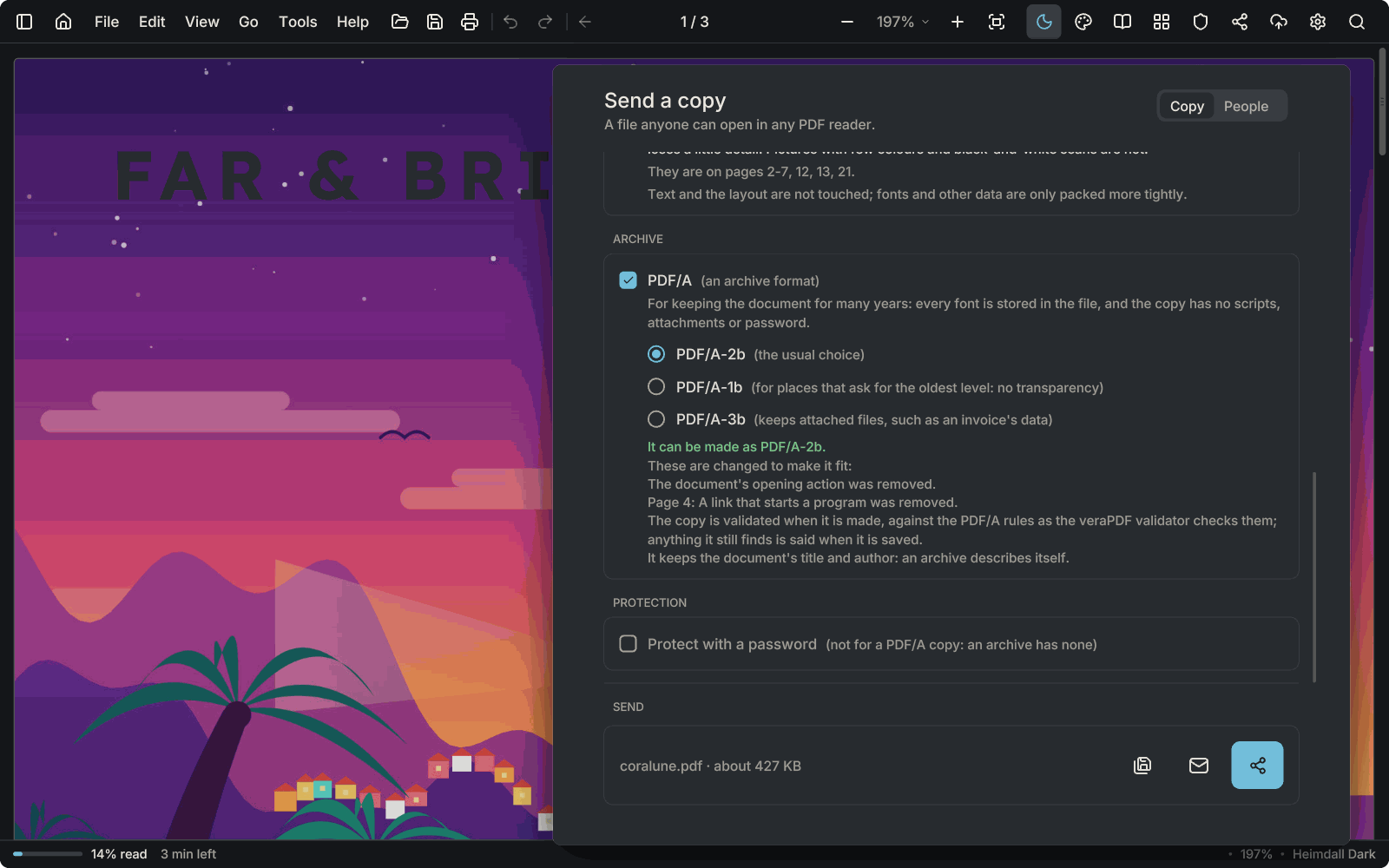
Compress PDF and PDF/A
Make a smaller copy or a PDF/A copy (1b, 2b or 3b) from the Copy tab. You see an estimate first, then a check of the result, with progress and a stop button.
-
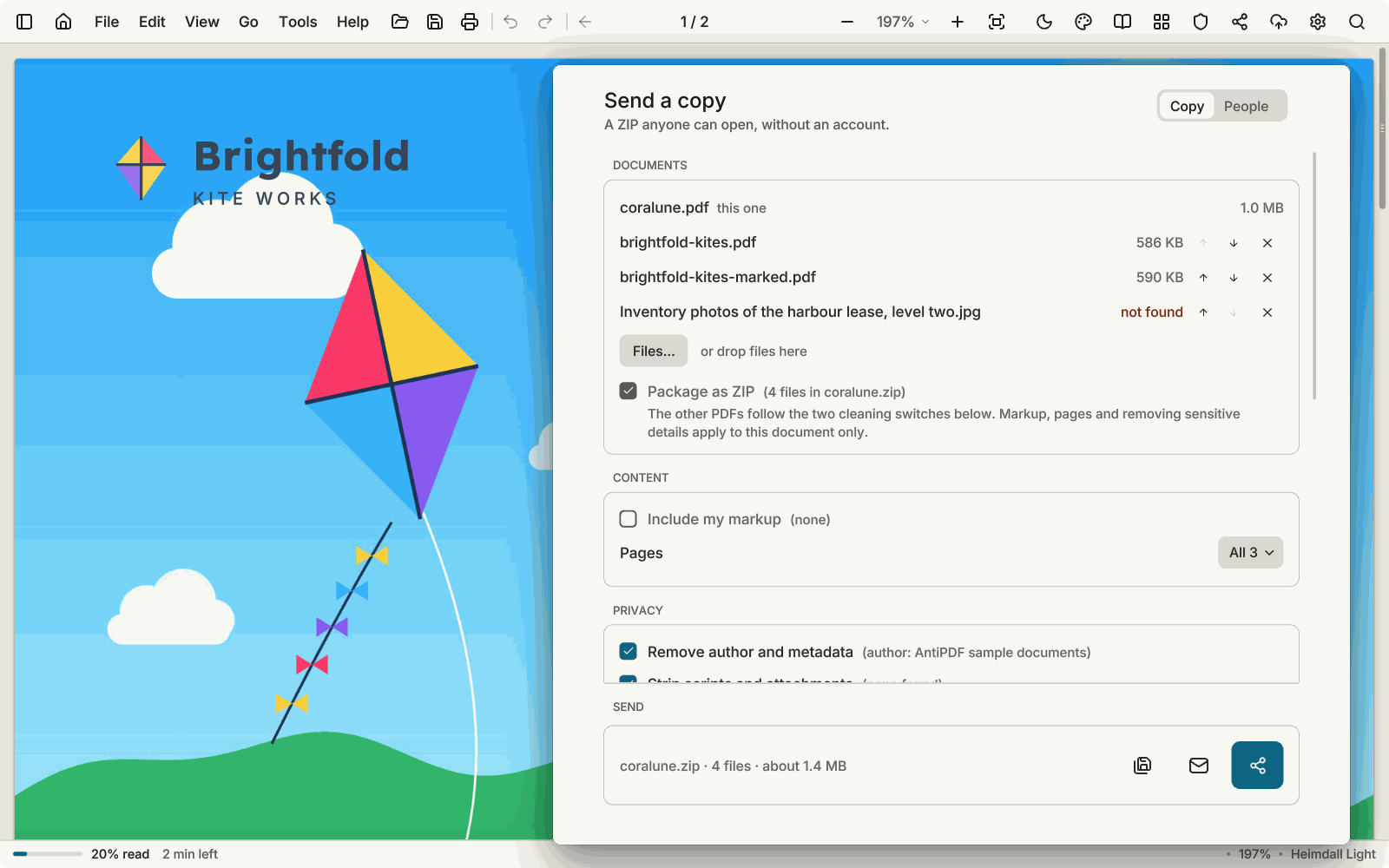
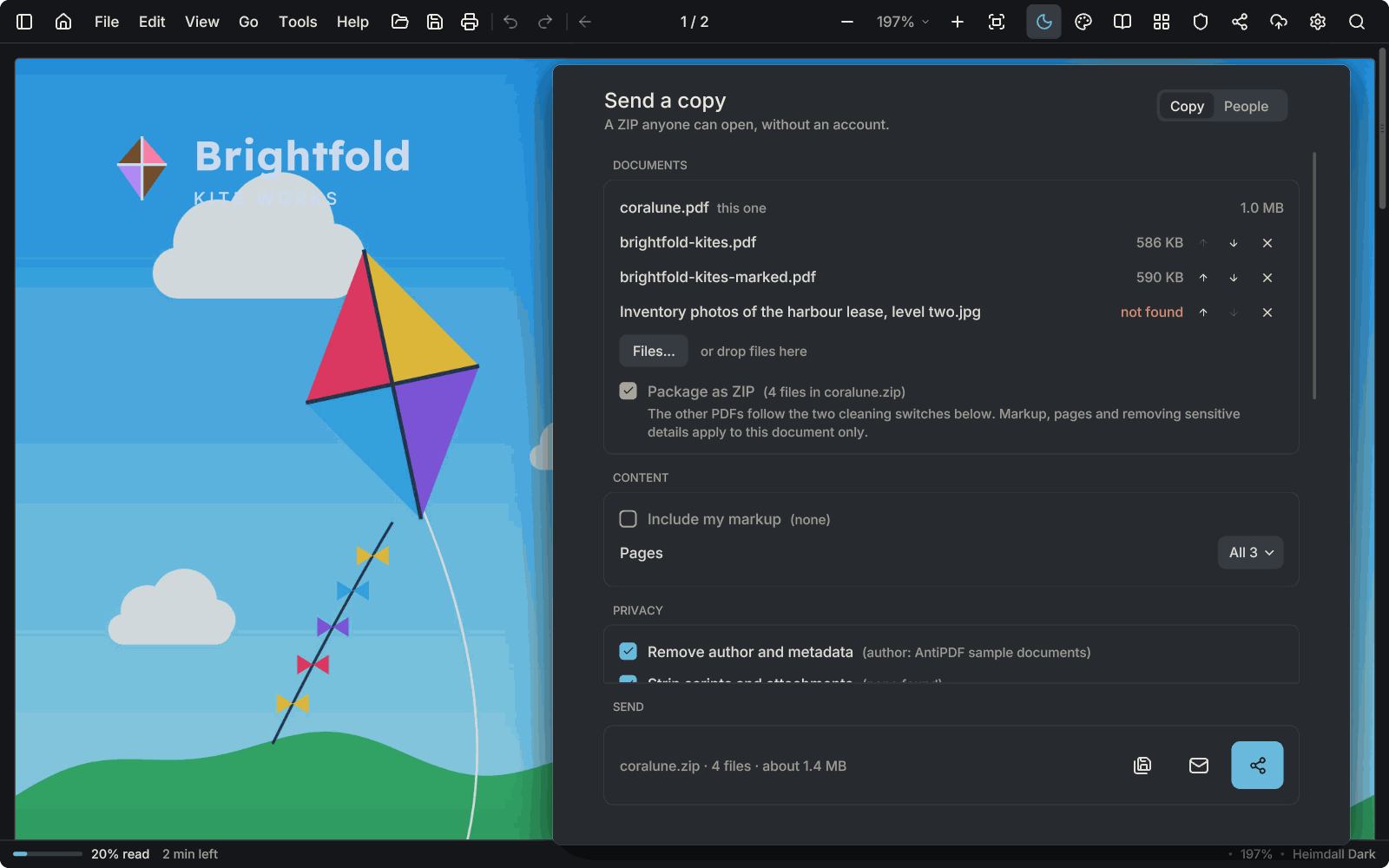
ZIP copies
Package a document, or several, as a ZIP from the Copy tab. A password on the ZIP is part of Pro.
Pro for the password -
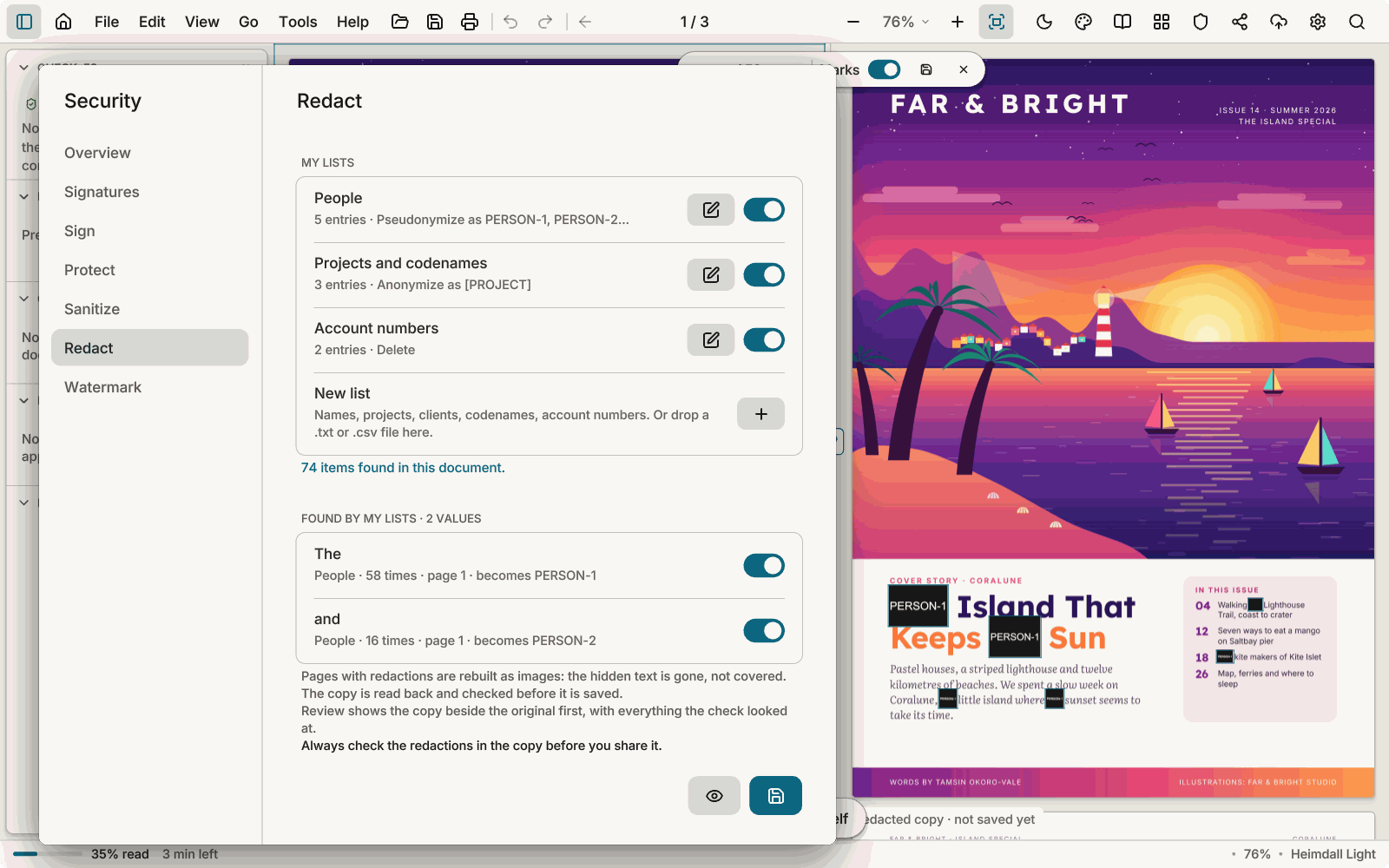
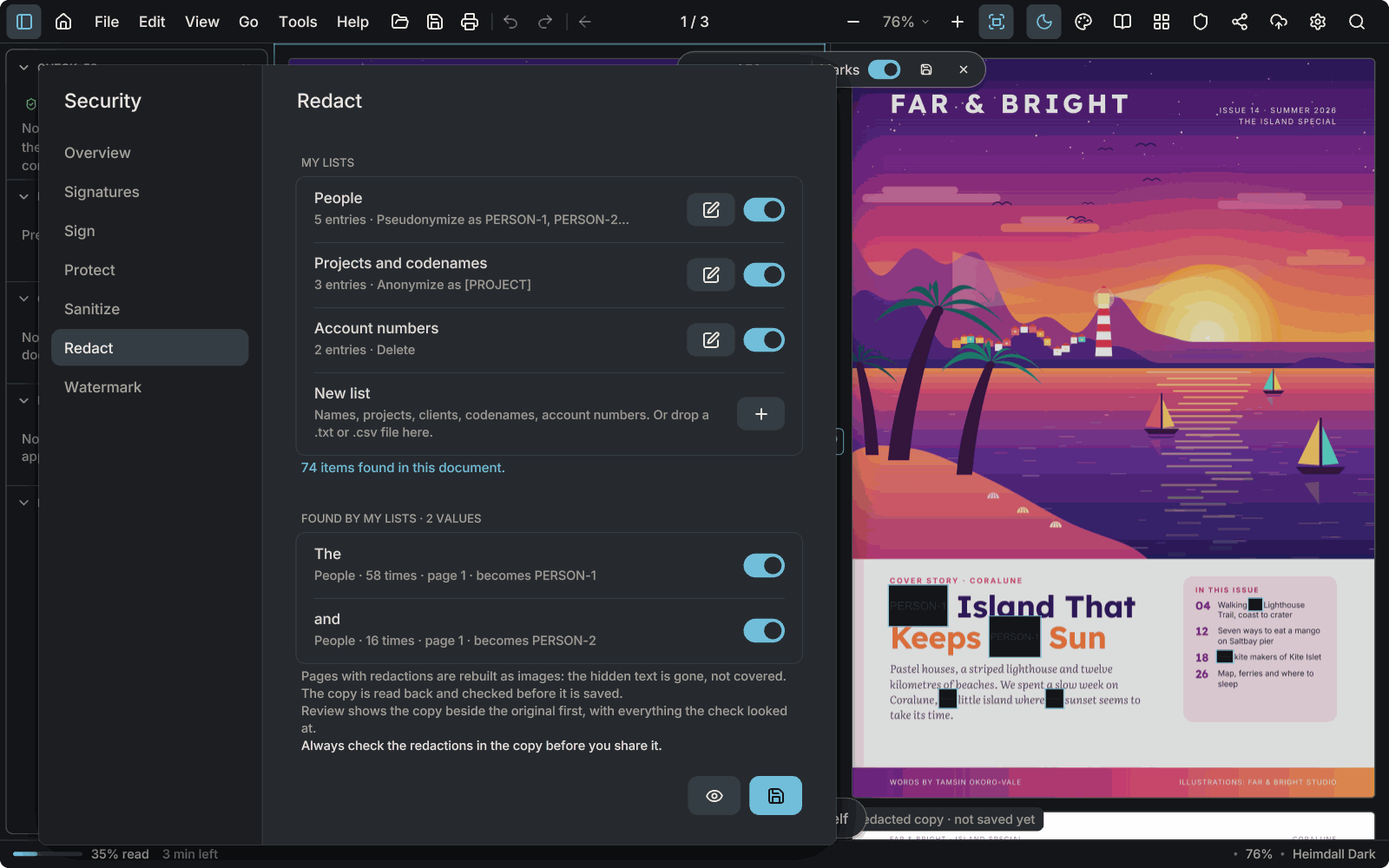
Redaction word lists
Keep lists of words and phrases to black out, apply them over a whole document, and let AntiPDF check the copy afterwards. Always check the redactions yourself too.
Pro -
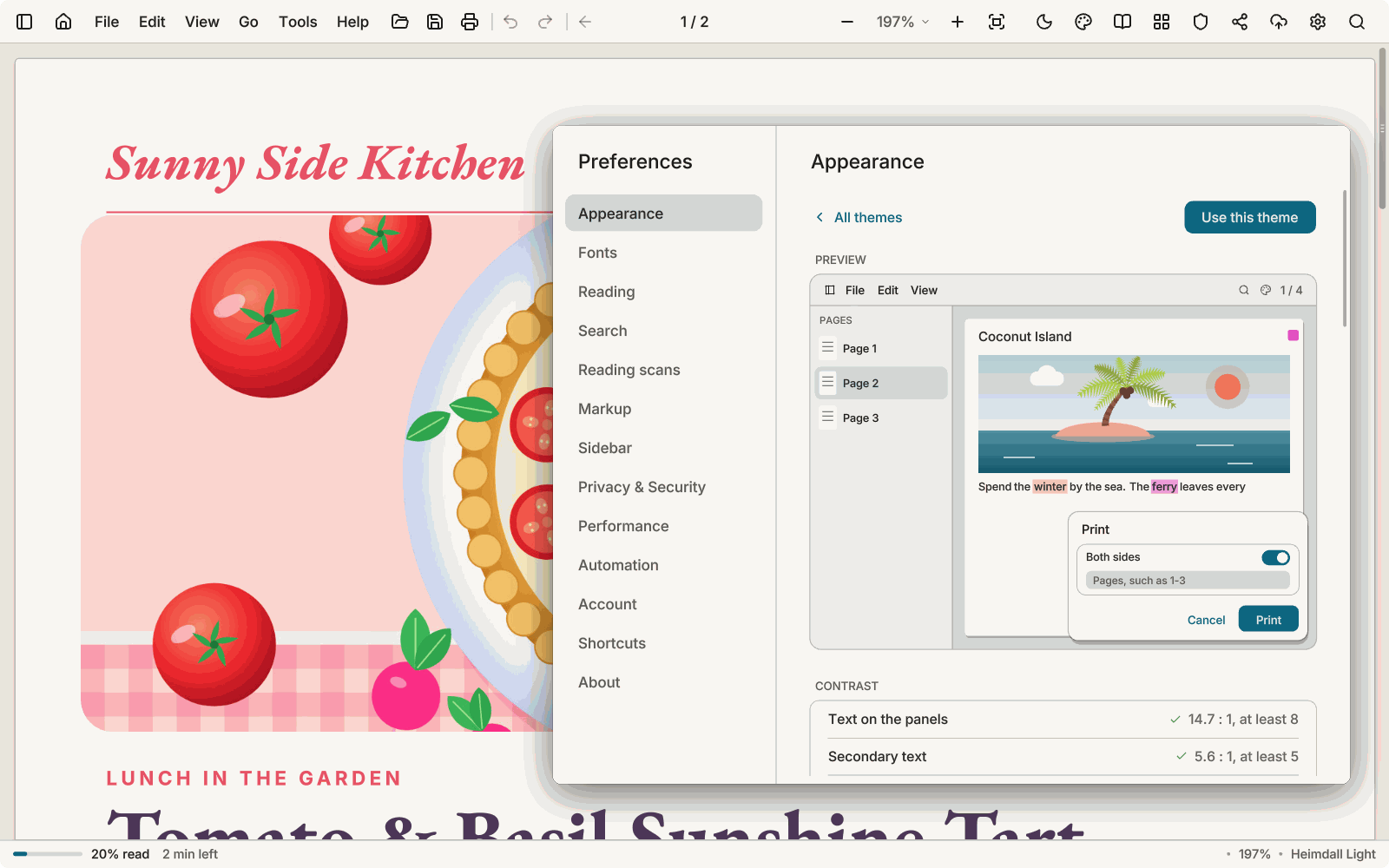
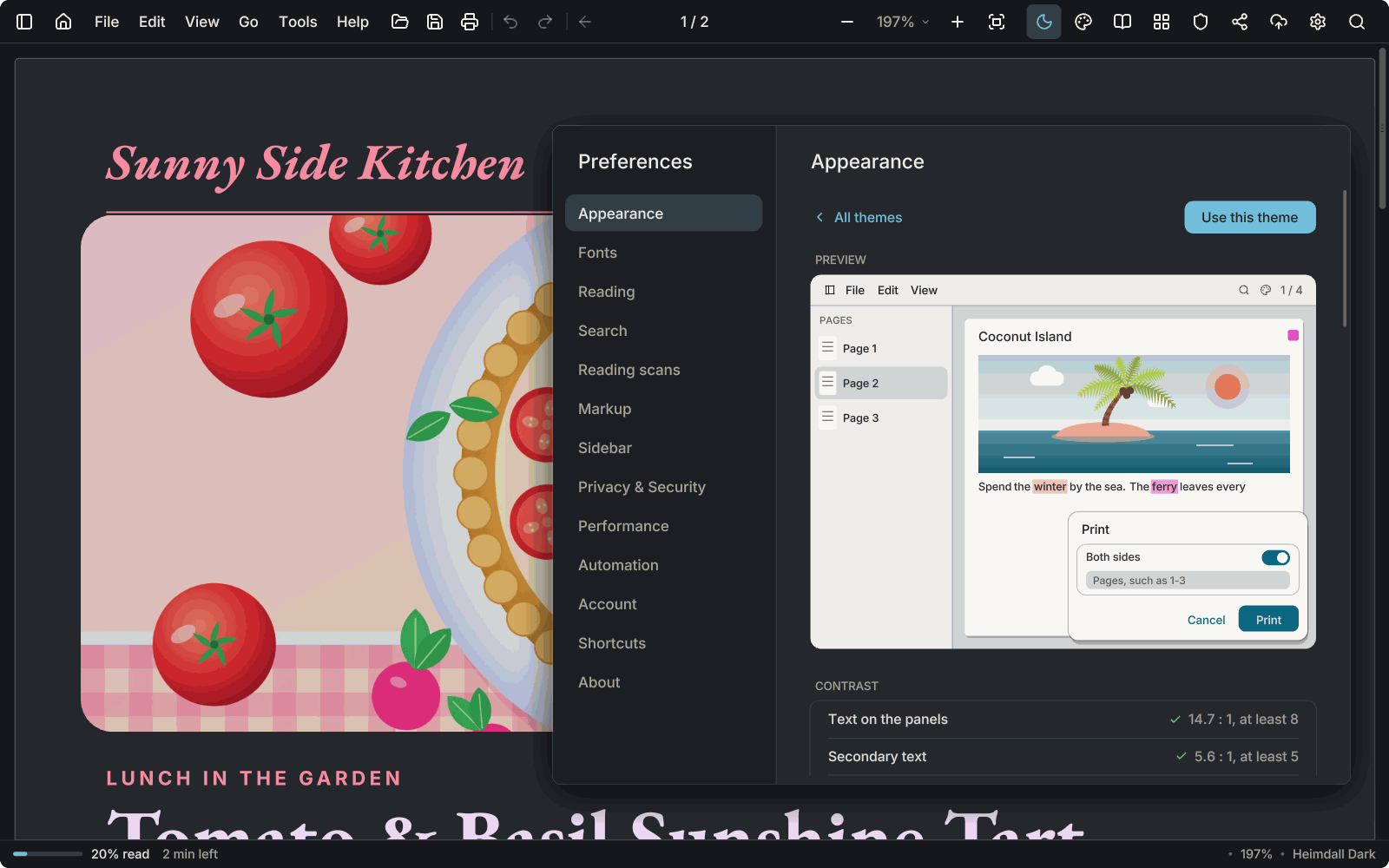
Custom themes and the community gallery
Build your own colours in a live editor, share them, and browse what other people made. The app asks the service only when you press Browse community themes.
-
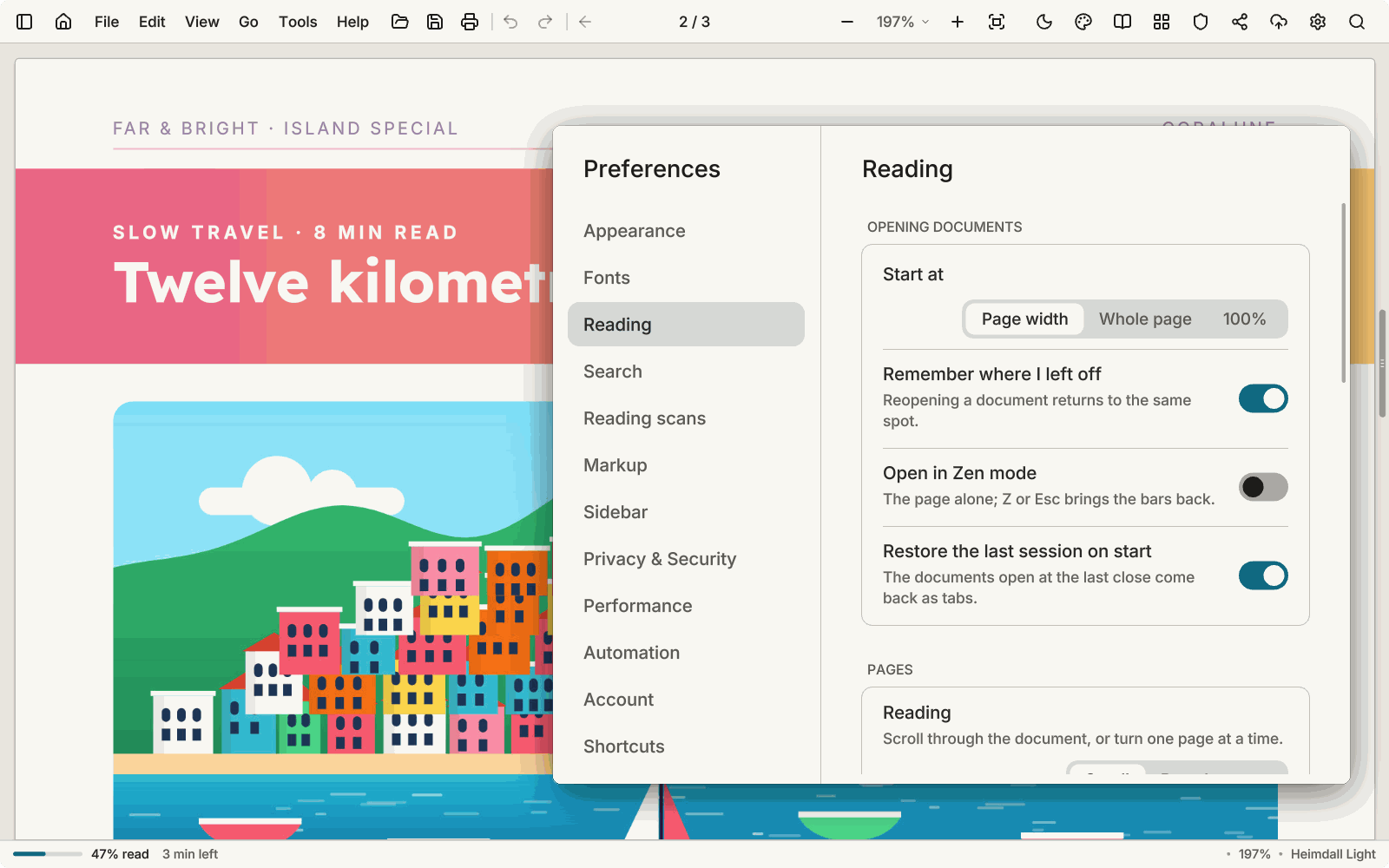
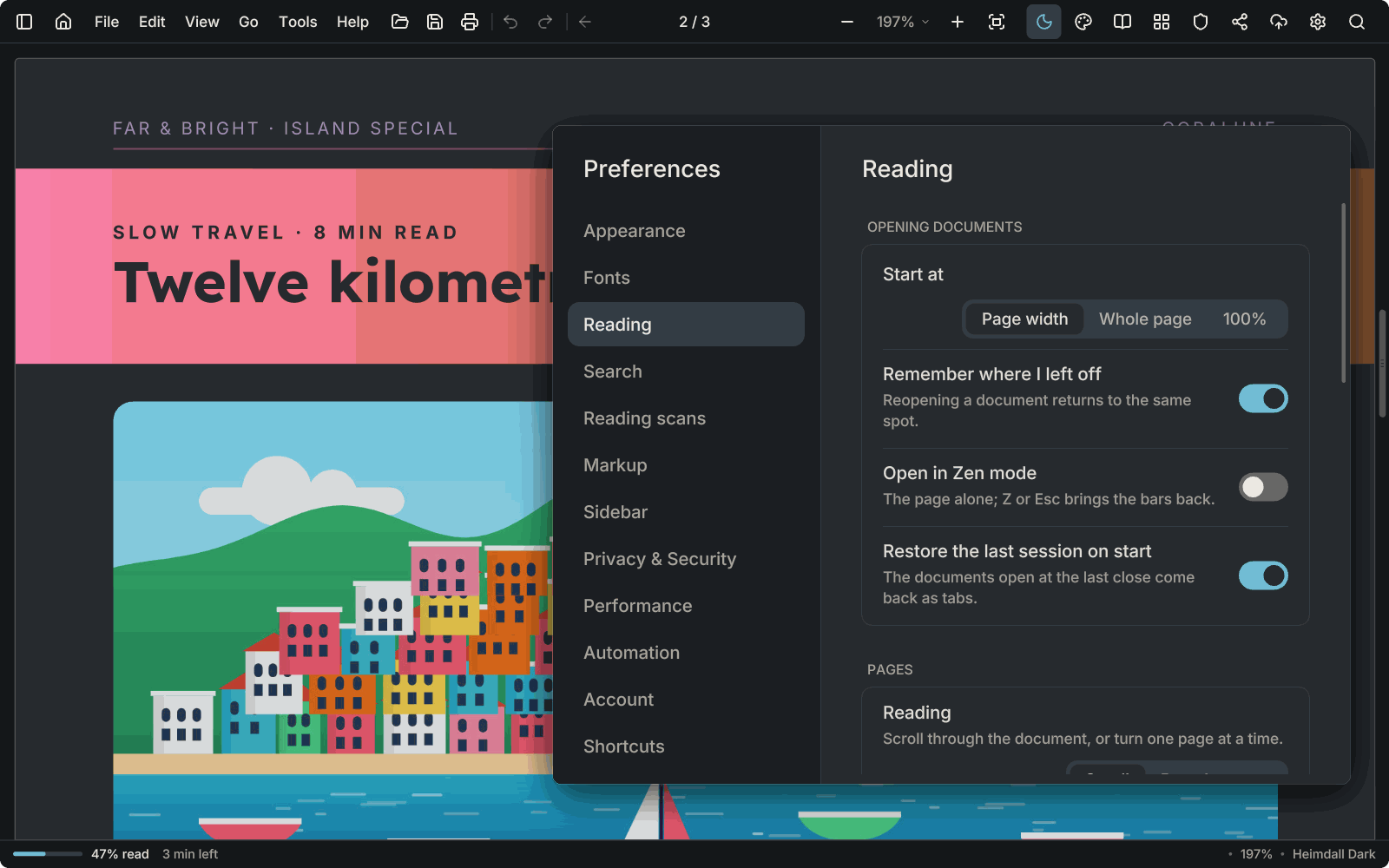
Clearer large text
Text at large interface sizes is drawn with finer detail, and greyed text keeps its contrast in every theme.
-
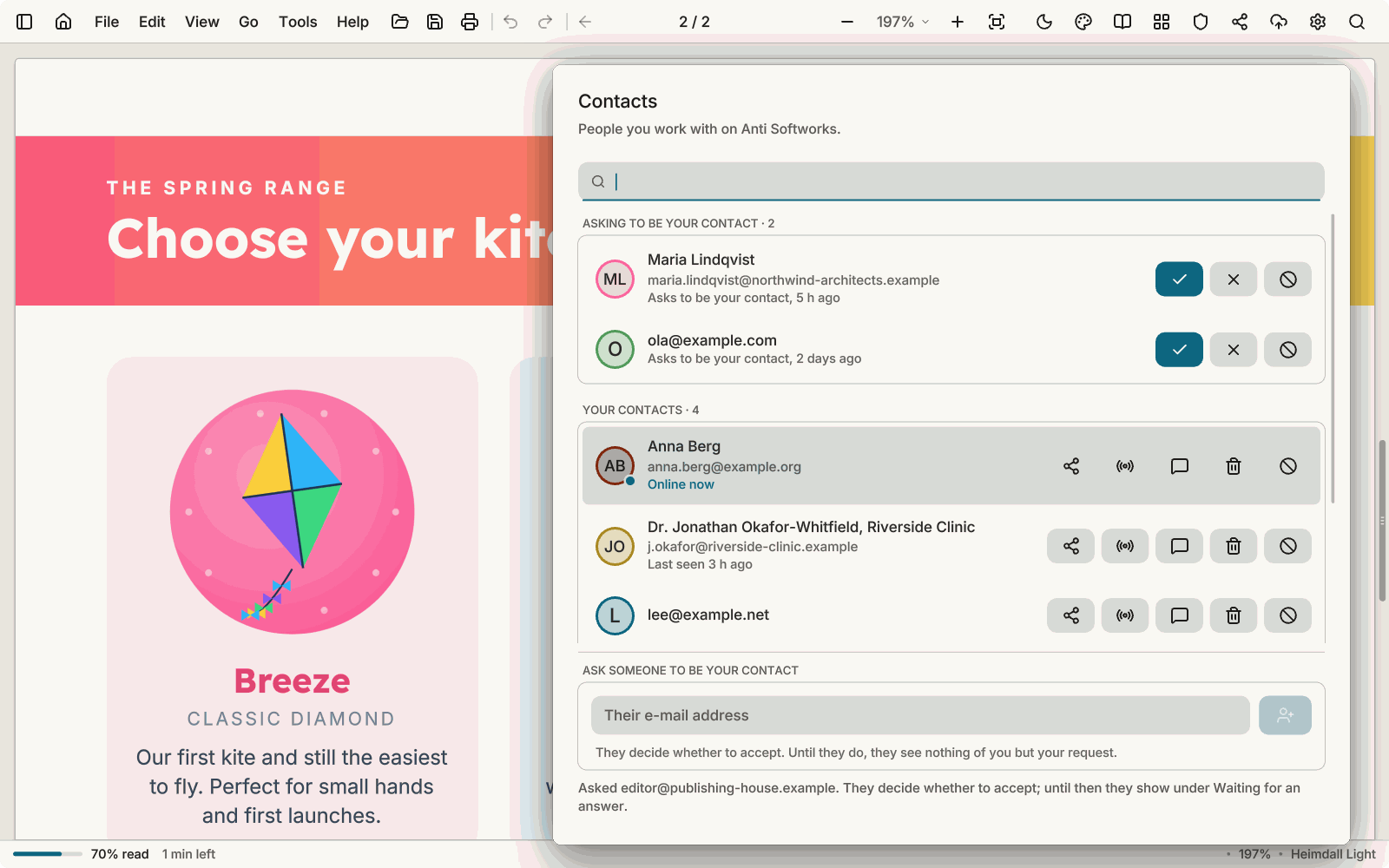
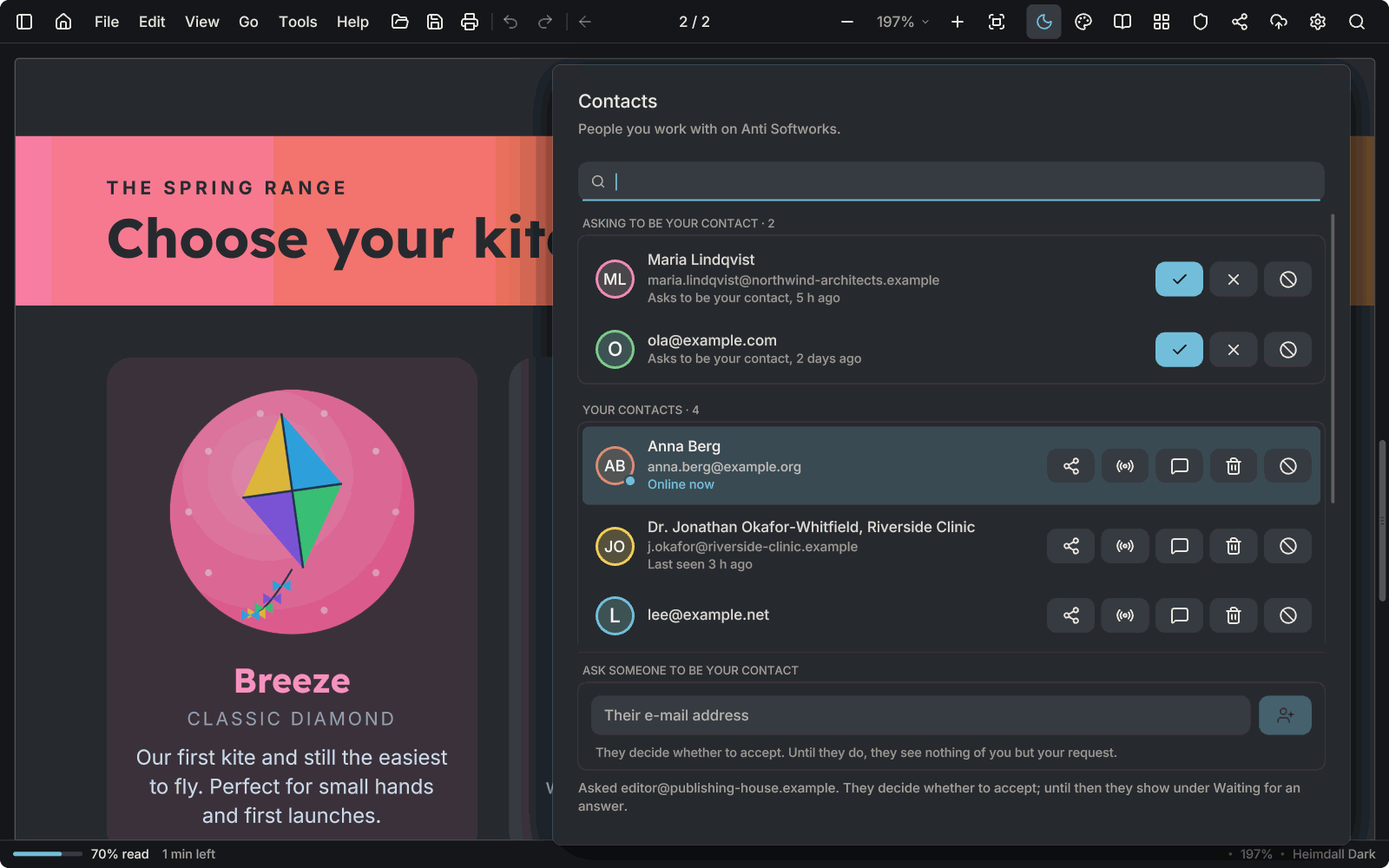
Contacts and pictures
Keep a list of people, send and accept requests, type a name to invite, and see a picture for each. Pictures are end-to-end encrypted like documents.
-
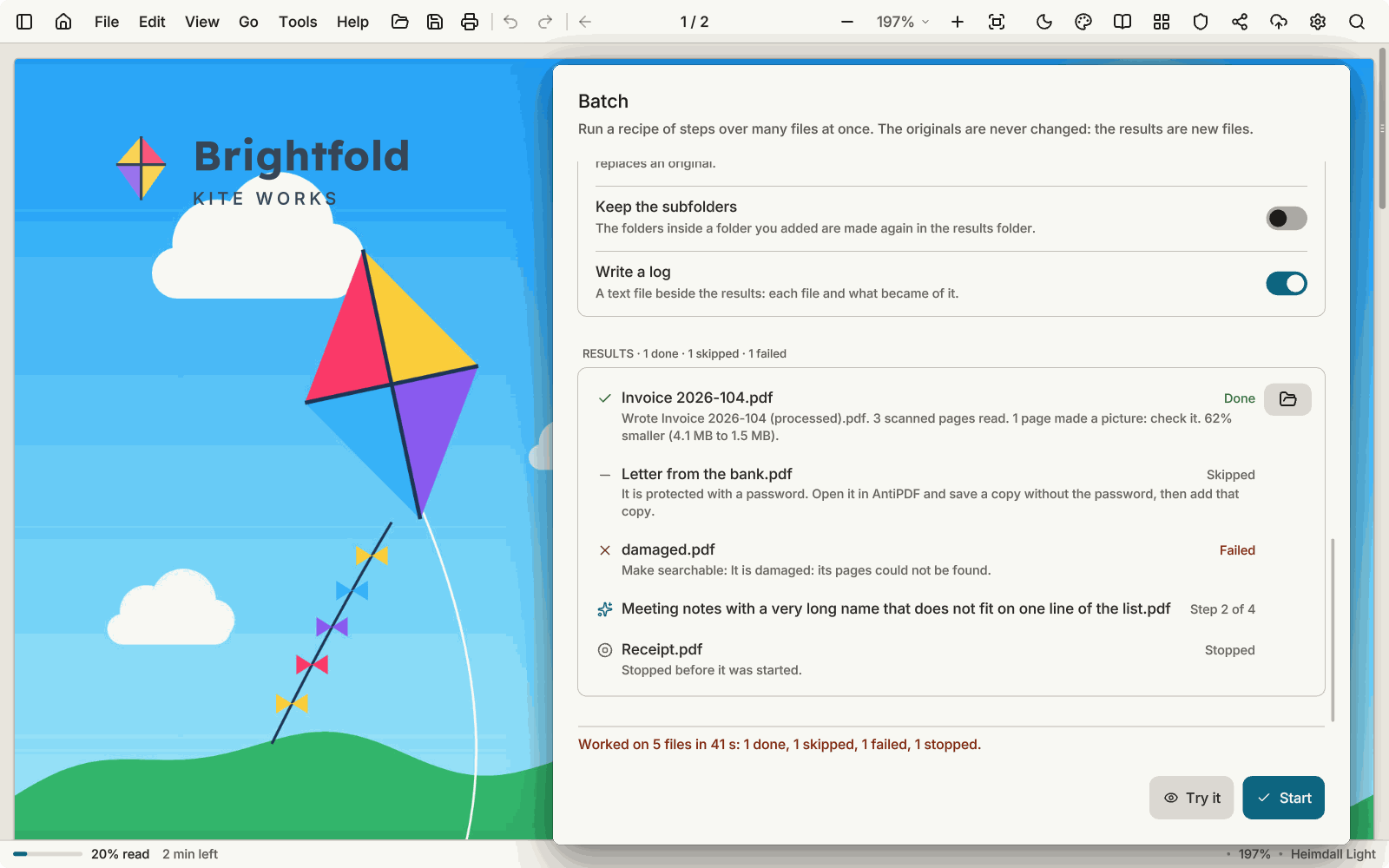
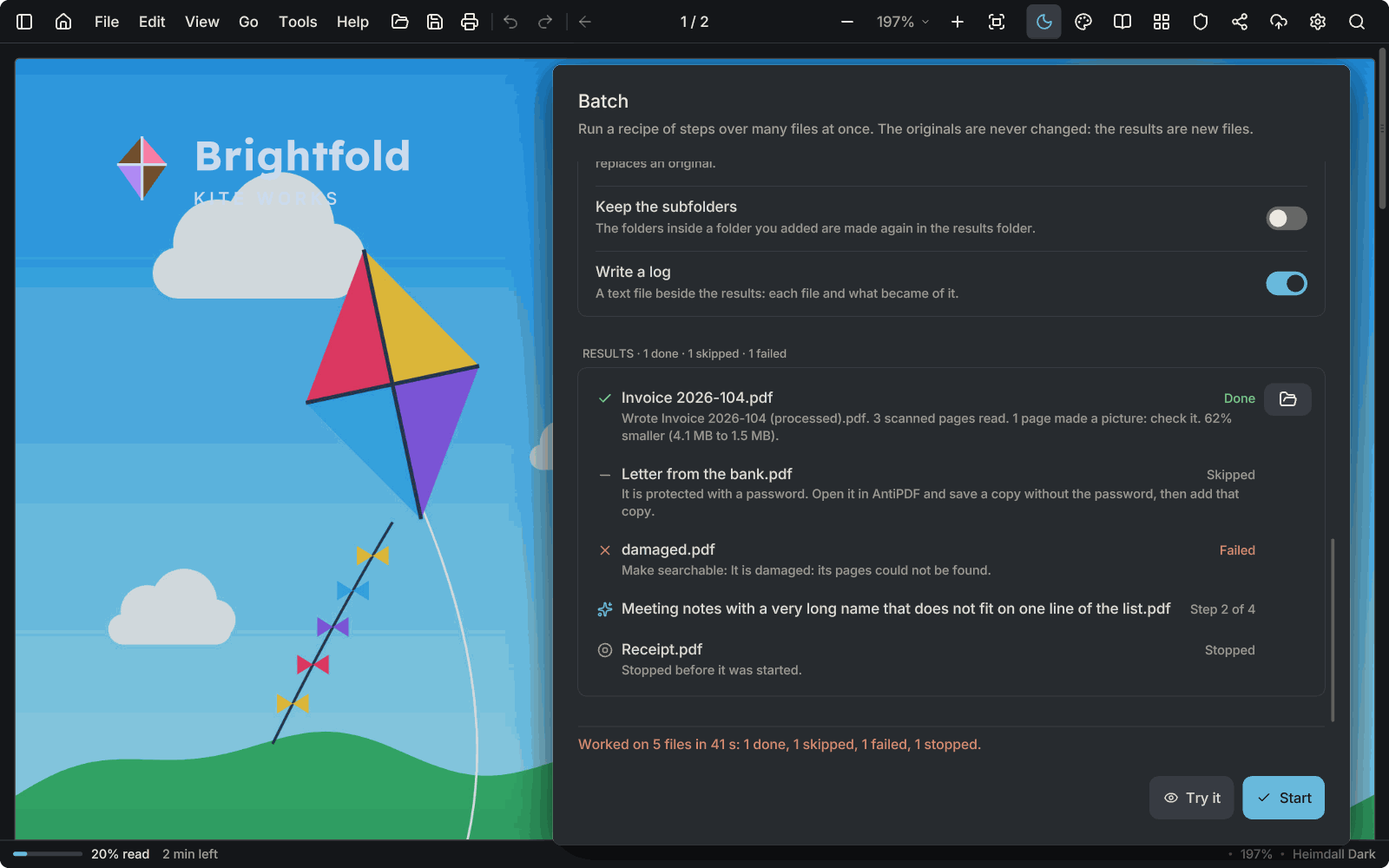
Batch and the automation port
Run steps over many files in one go, save them as recipes, or drive them from a script through a port that stays on your computer.
-
Documents without Office
AntiPDF reads Word, RTF, older Word, OpenDocument, OpenOffice and StarWriter files itself and lays them out with its own engine, and it turns a PDF back into Word, OpenDocument or RTF. None of it needs Word or any other program installed. Comic archives (CBZ, CBR, CB7, CBT) open as books too.
-
Bates numbering
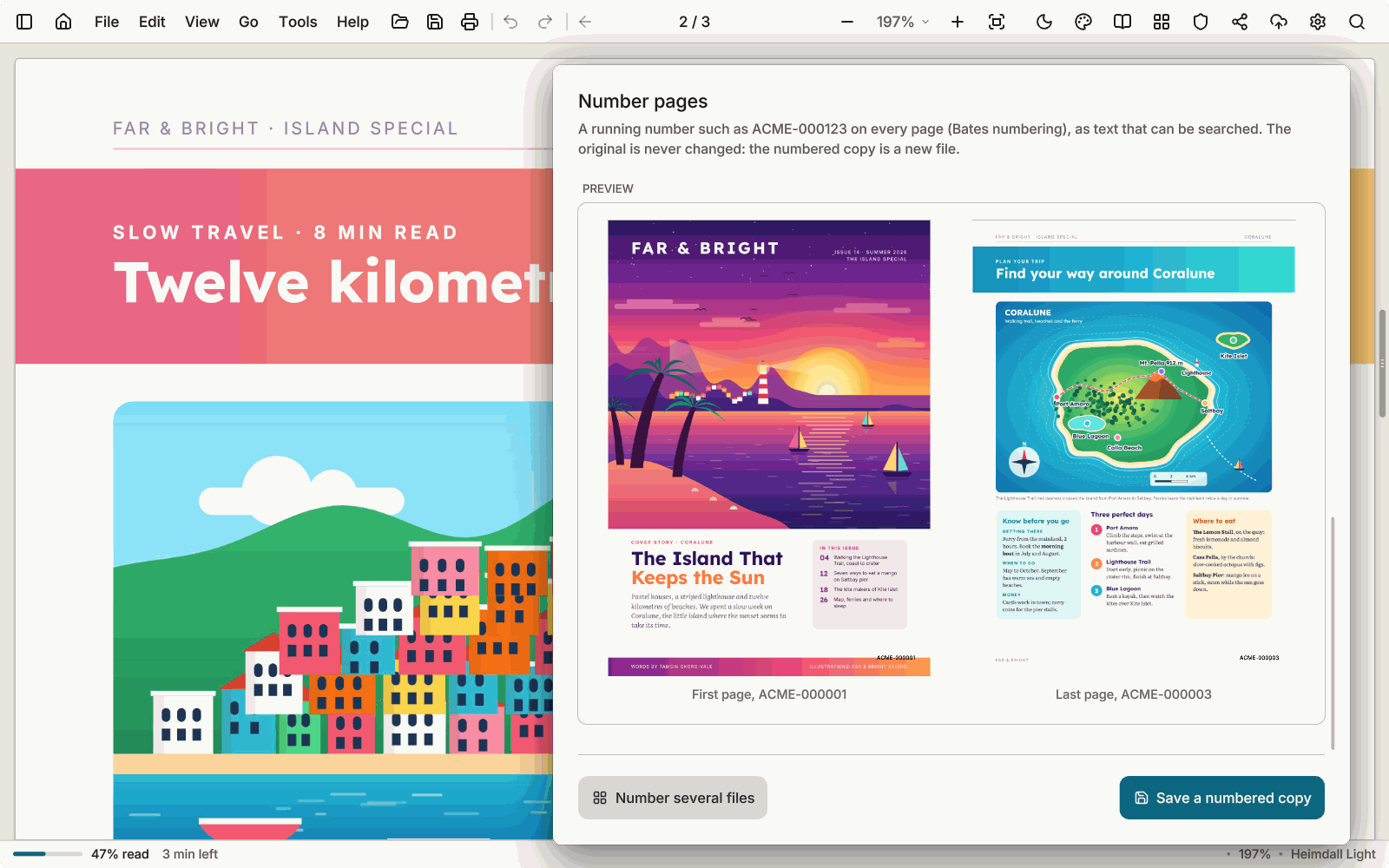
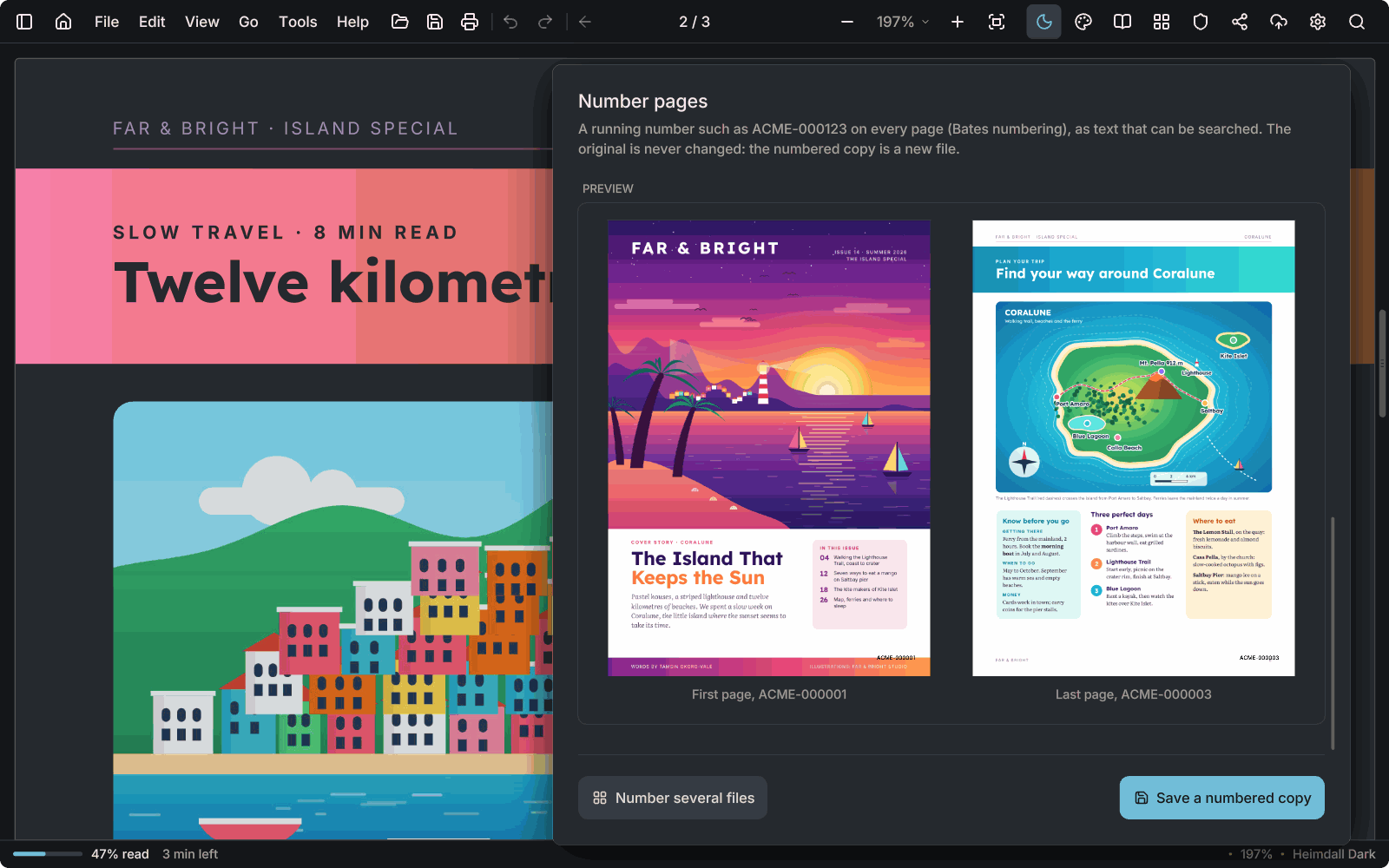
Put a running number such as ACME-000123 on every page, as text that can be searched. In a batch the numbers continue from file to file. The original is never changed: the numbered copy is a new file.
-
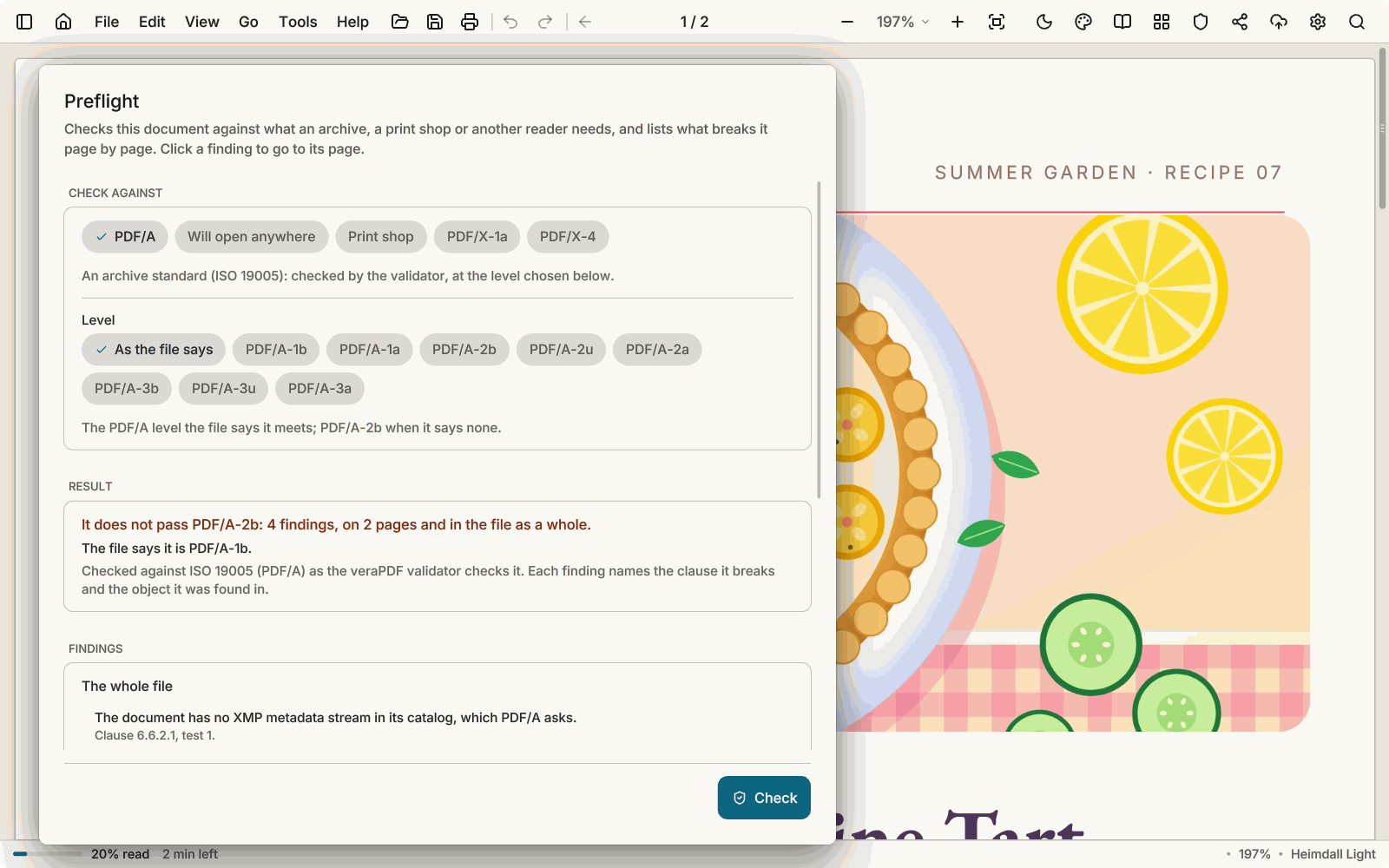
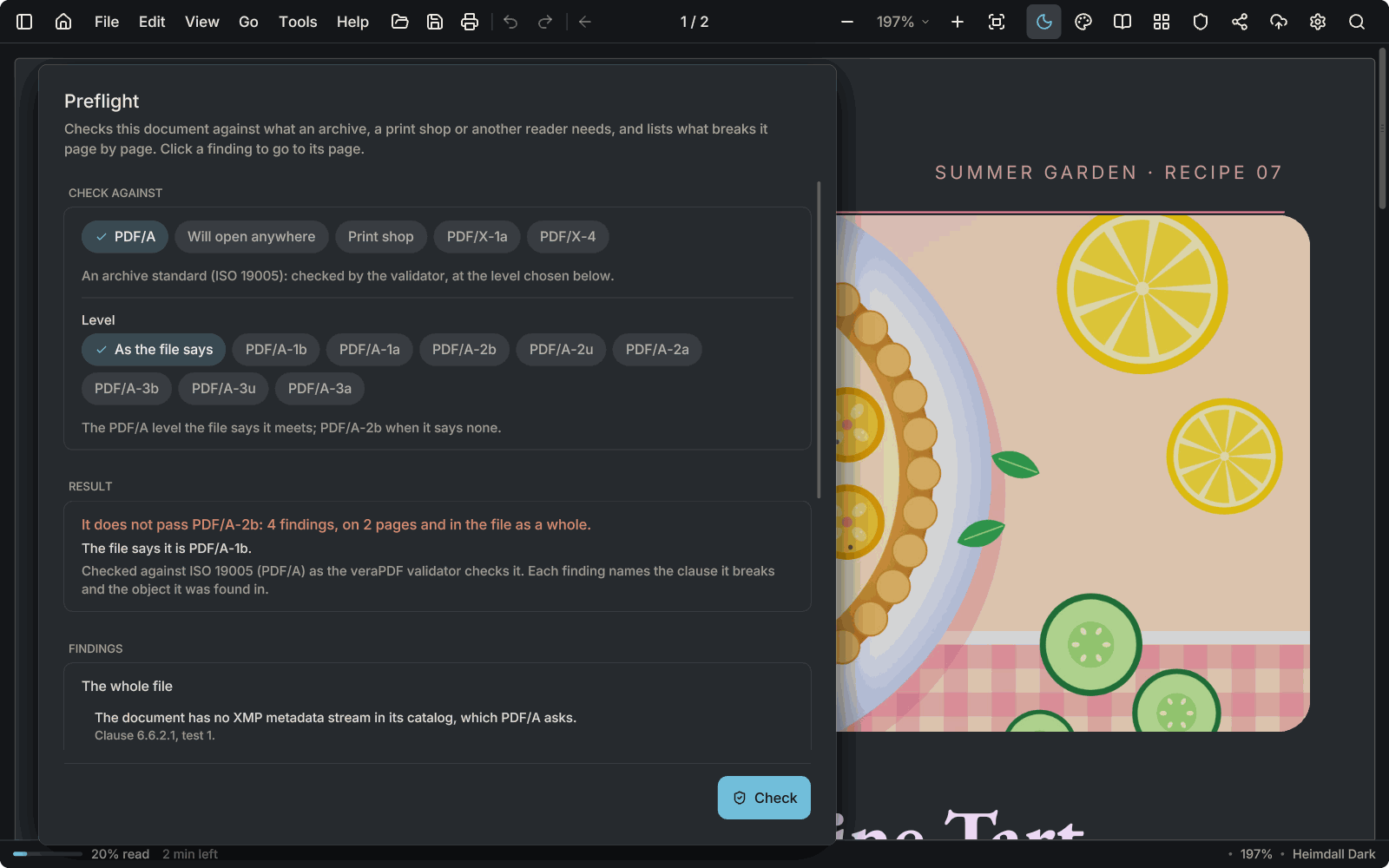
PDF/A check and Preflight
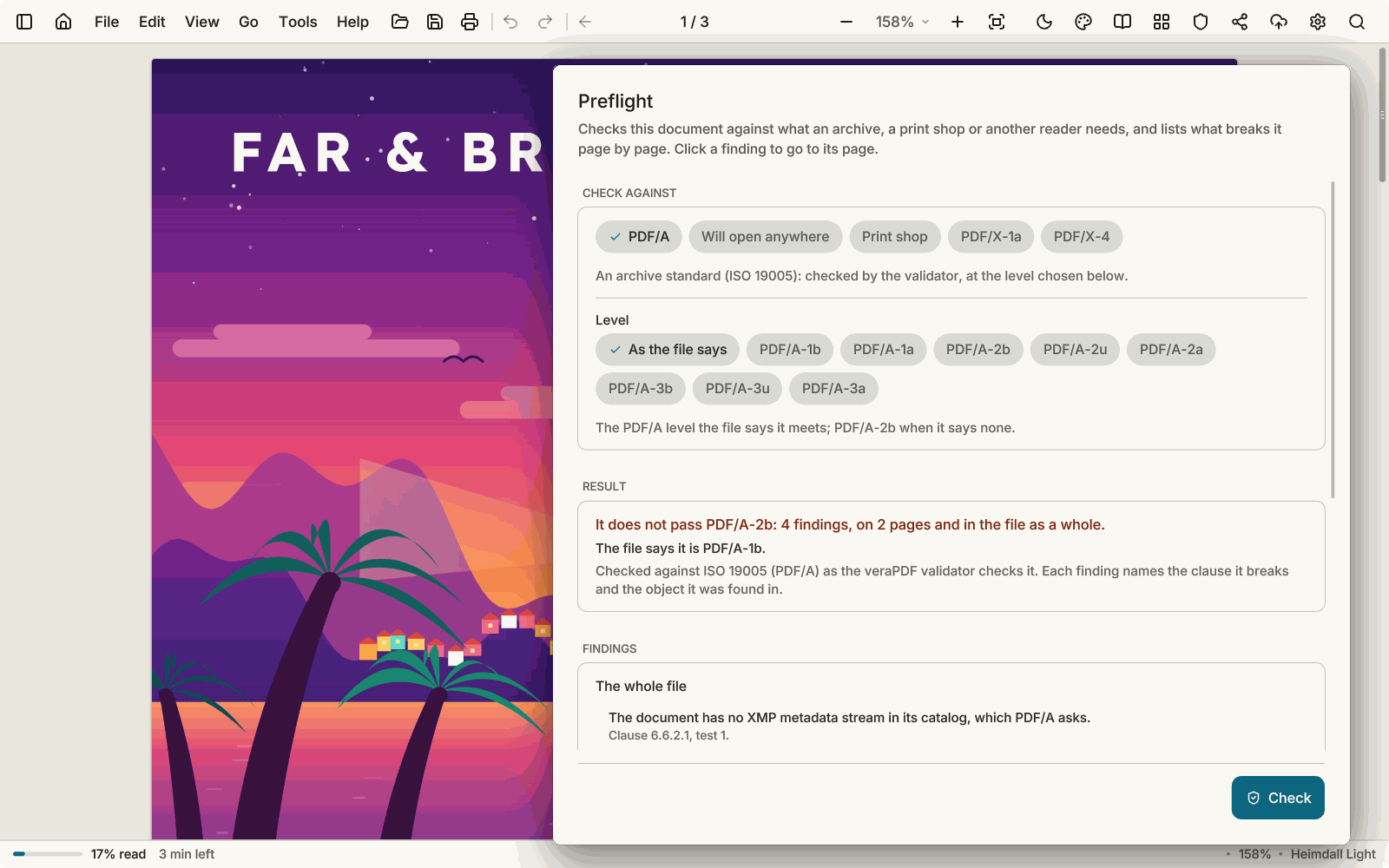
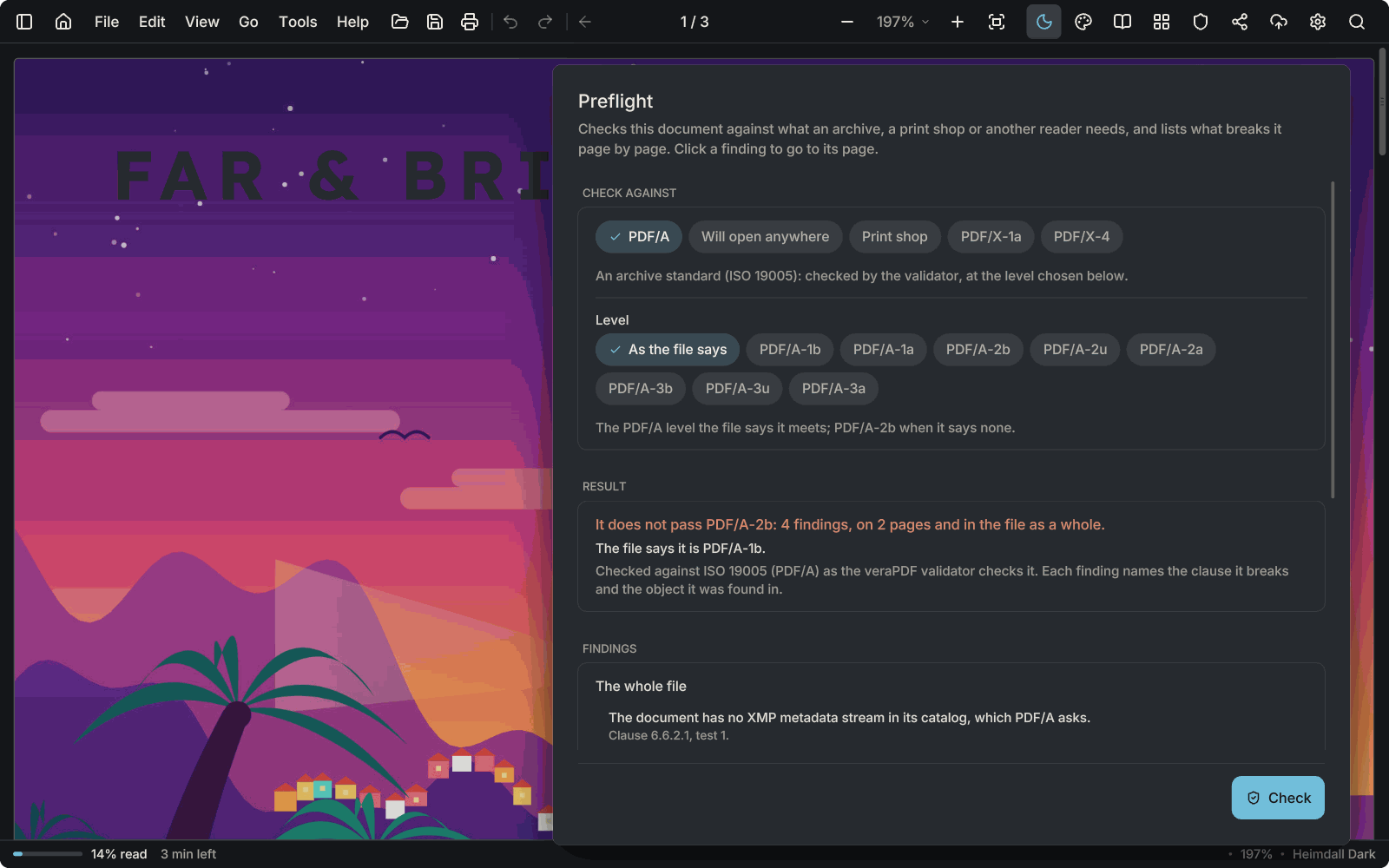
A validator of its own checks a file against PDF/A-1, -2 and -3 and says which rule a finding breaks and where. Preflight also checks a file for a print shop or for other readers, and puts right what is safe to put right in a new file. PDF/A copies at -1b, -2b and -3b are checked when they are made.
-
Inspect
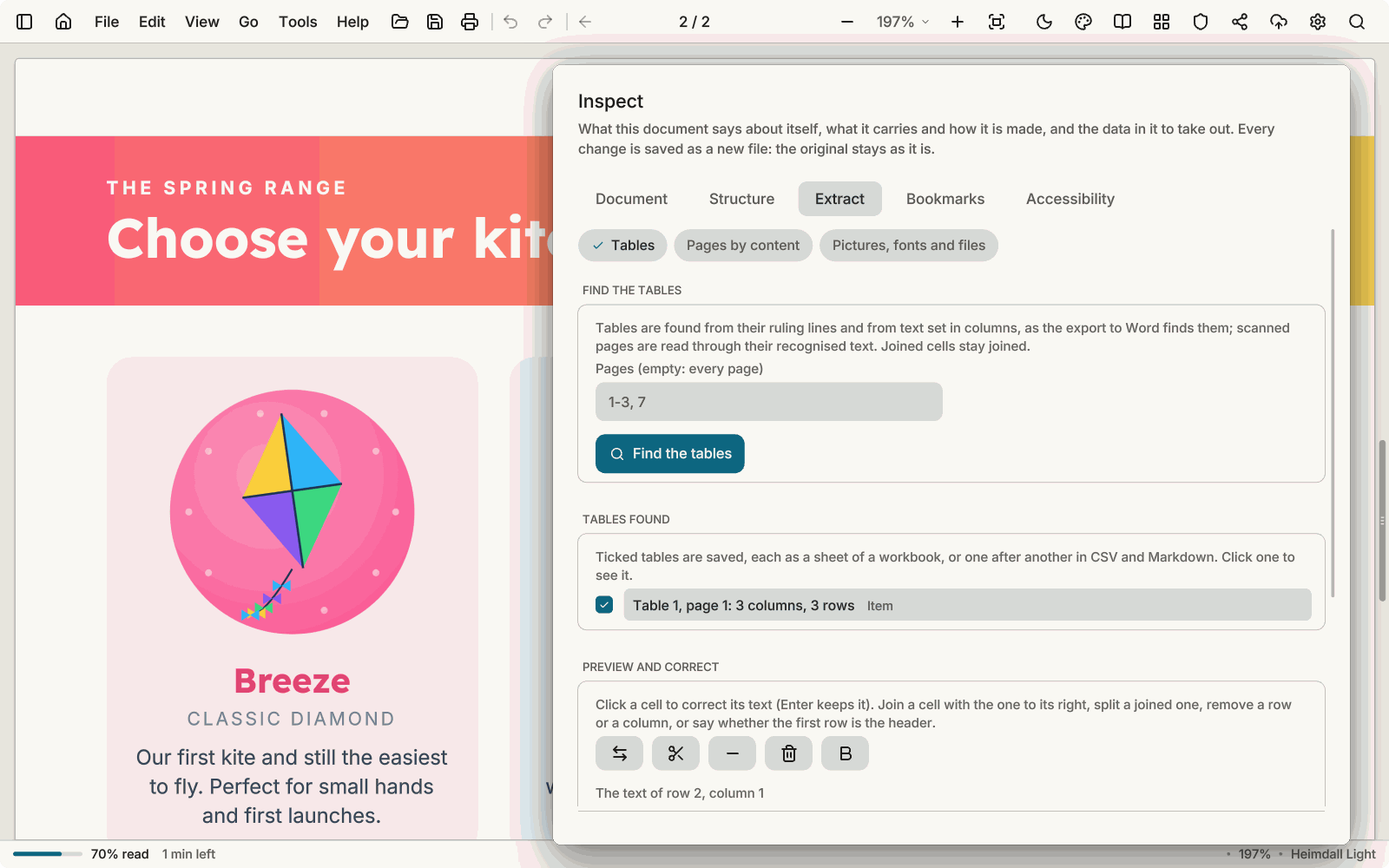
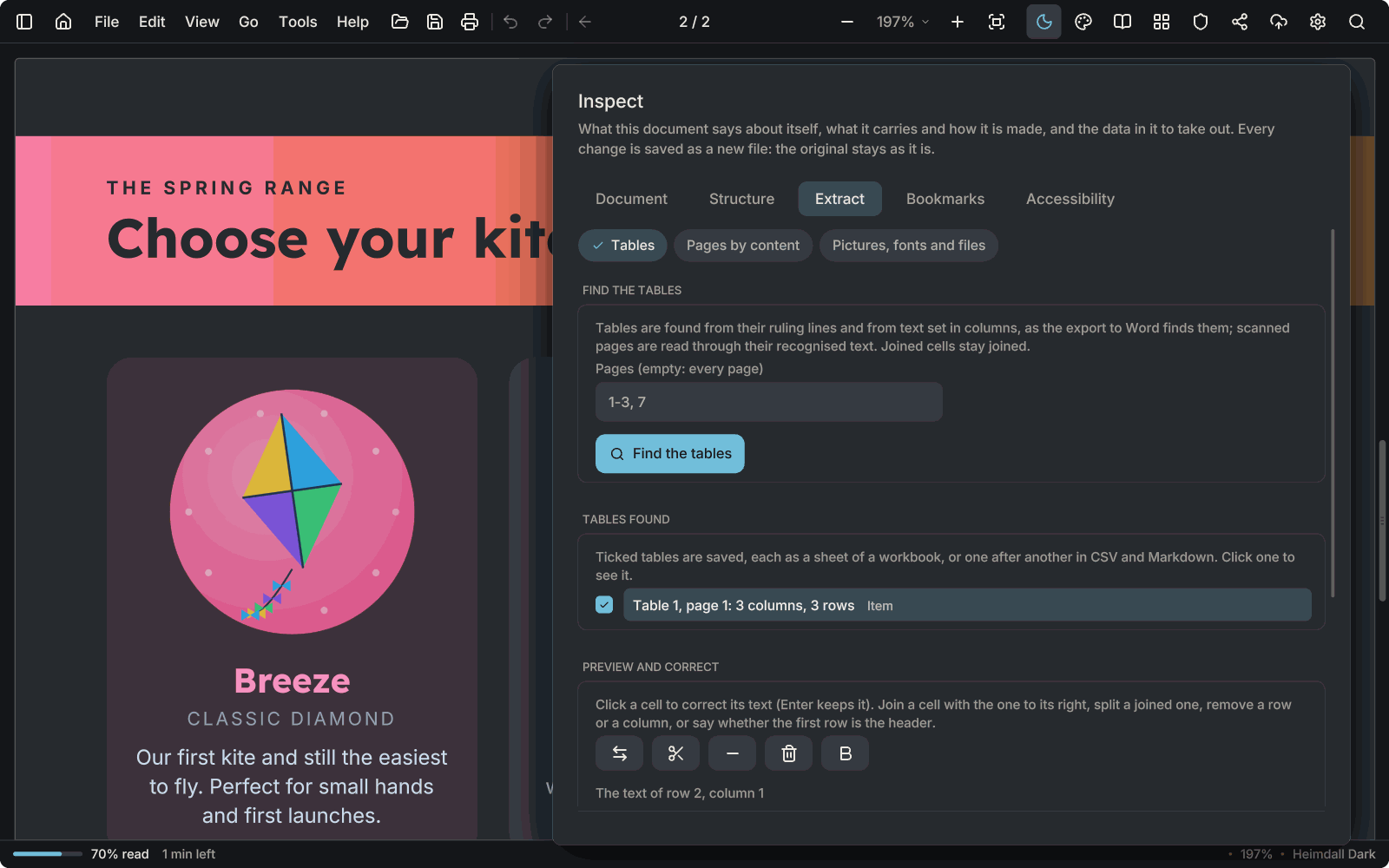
See what a file says about itself and what it carries: metadata, attachments, scripts, structure, fonts and pictures. Take tables out to Excel, CSV or Markdown, build bookmarks from headings, and repair a damaged file.
Pro for the clean-up -
Accessible PDFs
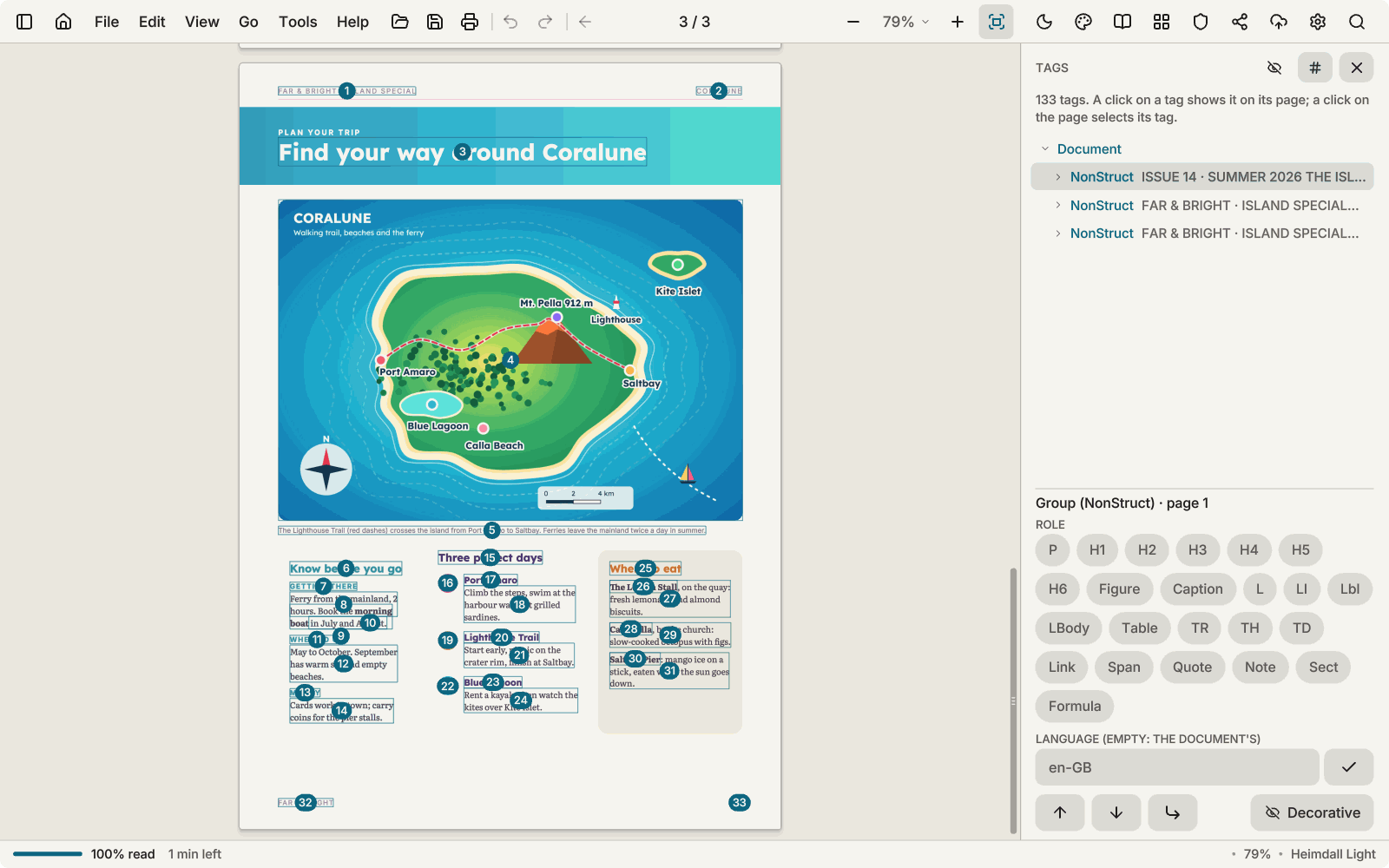
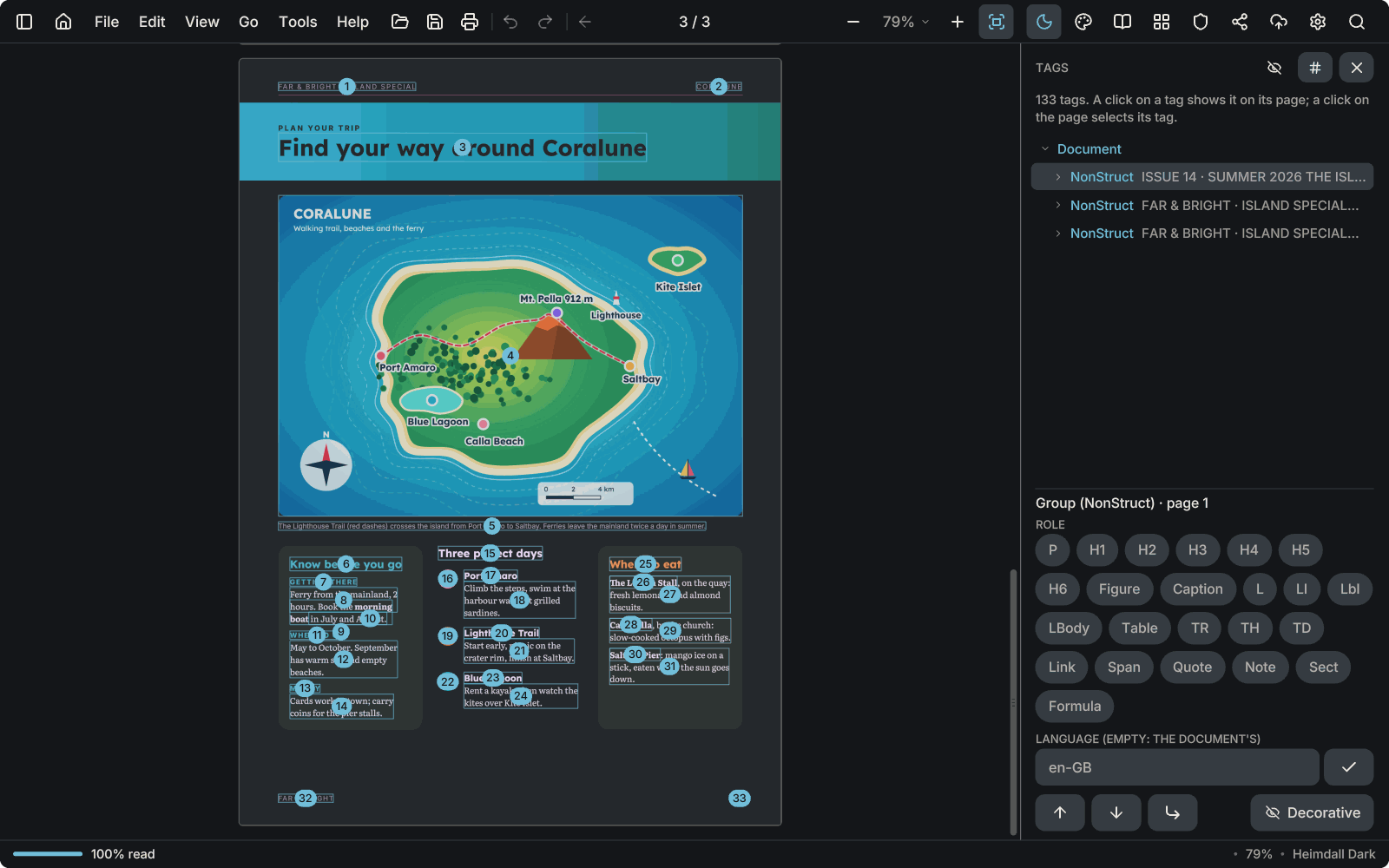
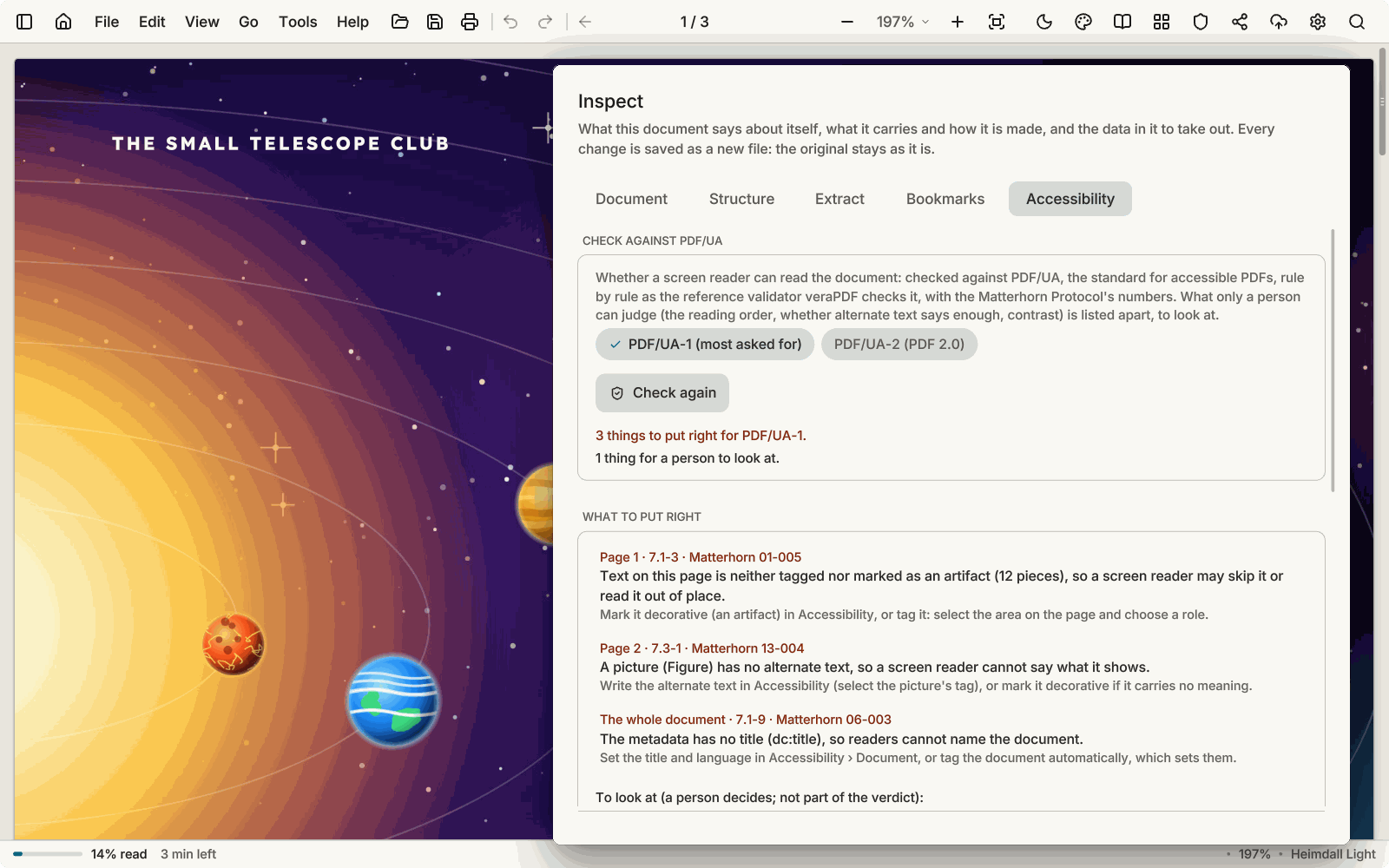
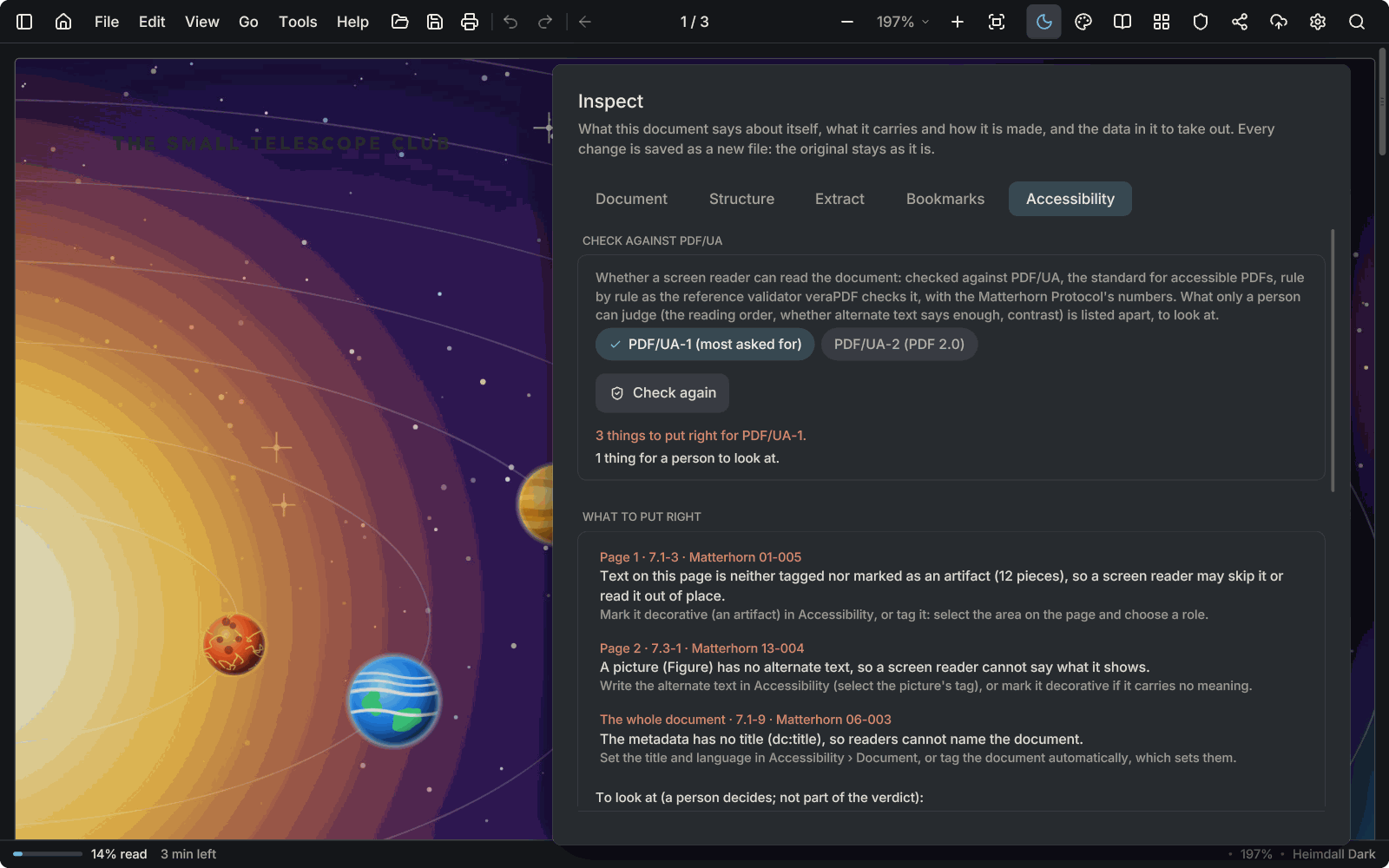
Check a document against PDF/UA and see what a screen reader gets: the tags, with the reading order drawn over the page. Set the role, alternate text and language of a tag by hand, mark a picture as decorative, and set the title and language. An untagged file can be tagged as a first draft that you review, and Word, OpenDocument and e-book files you open come out tagged. The reading order is changed with move up and move down, not by dragging. Editing works on documents up to 256 MB, and text that only came from text recognition must be made searchable before it can be tagged. The checker lists what only a person can judge.
-
Colour emoji
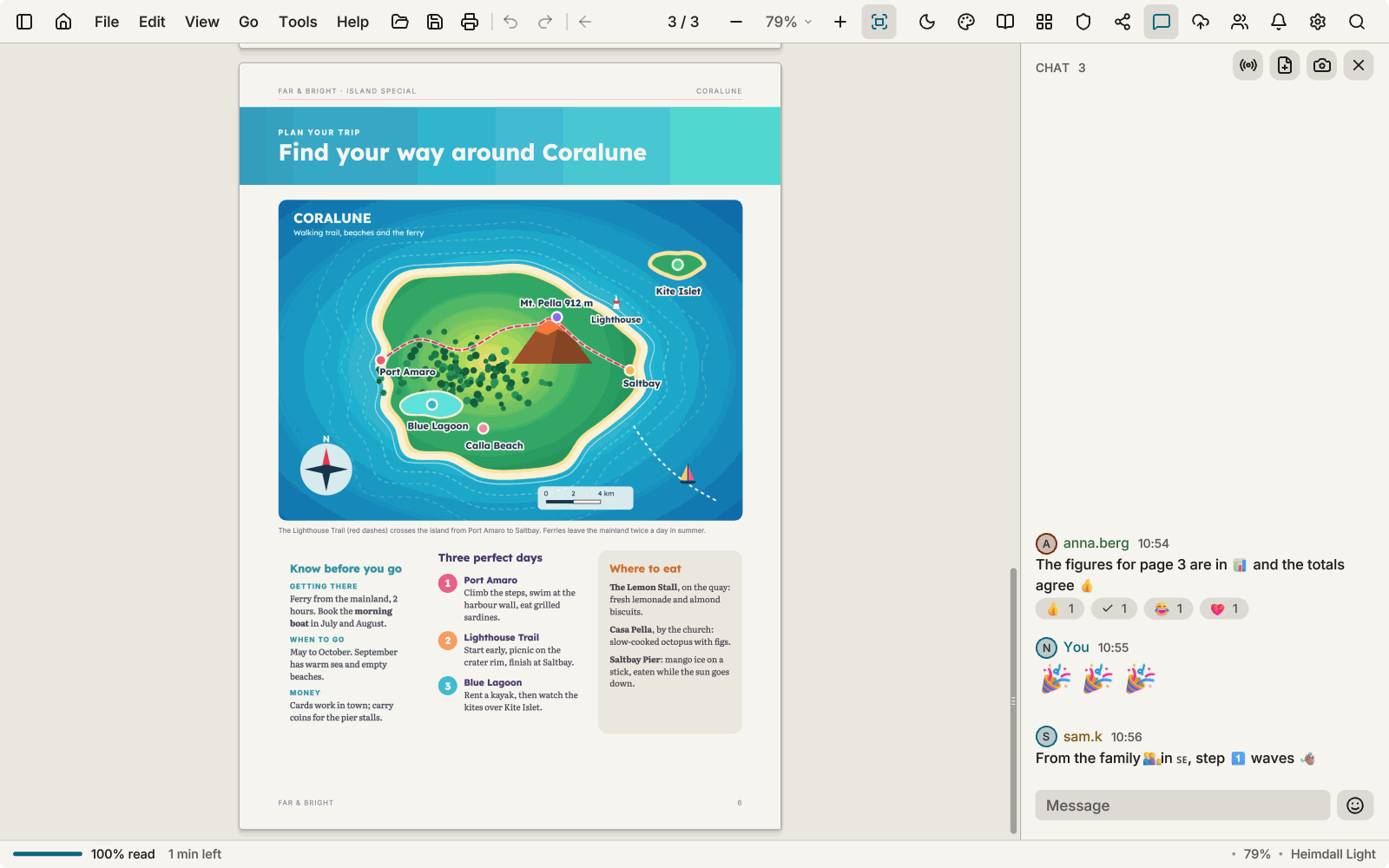
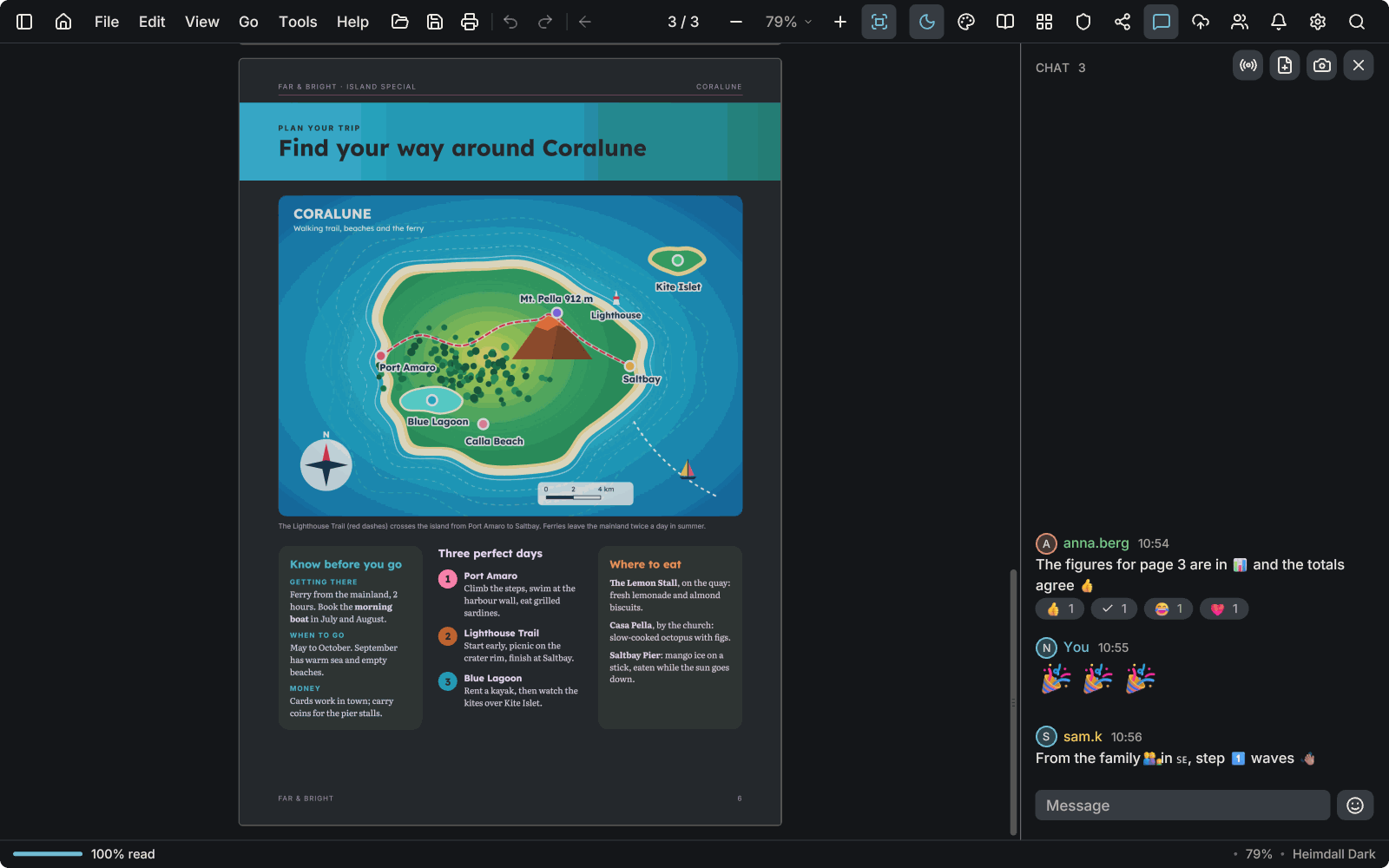
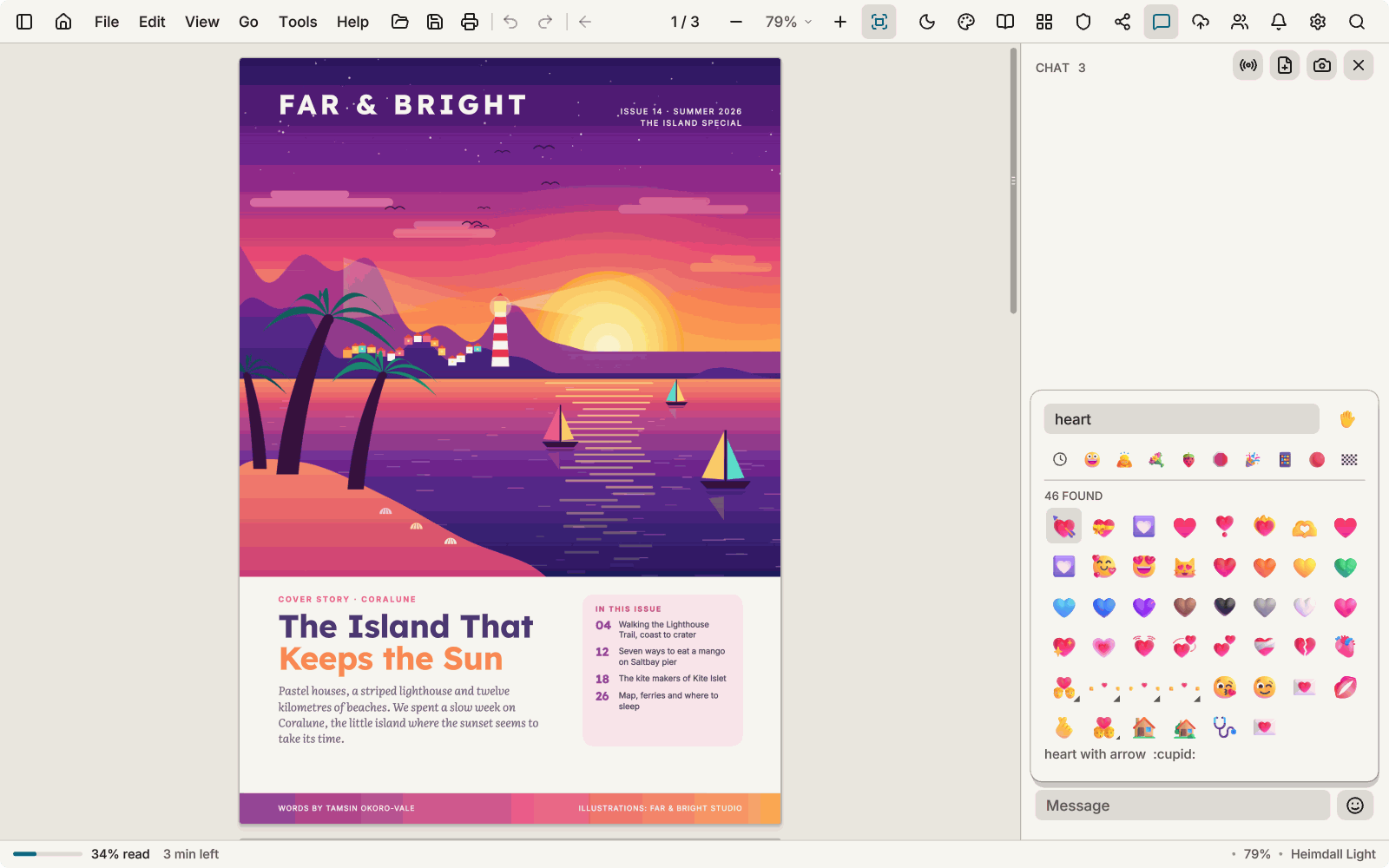
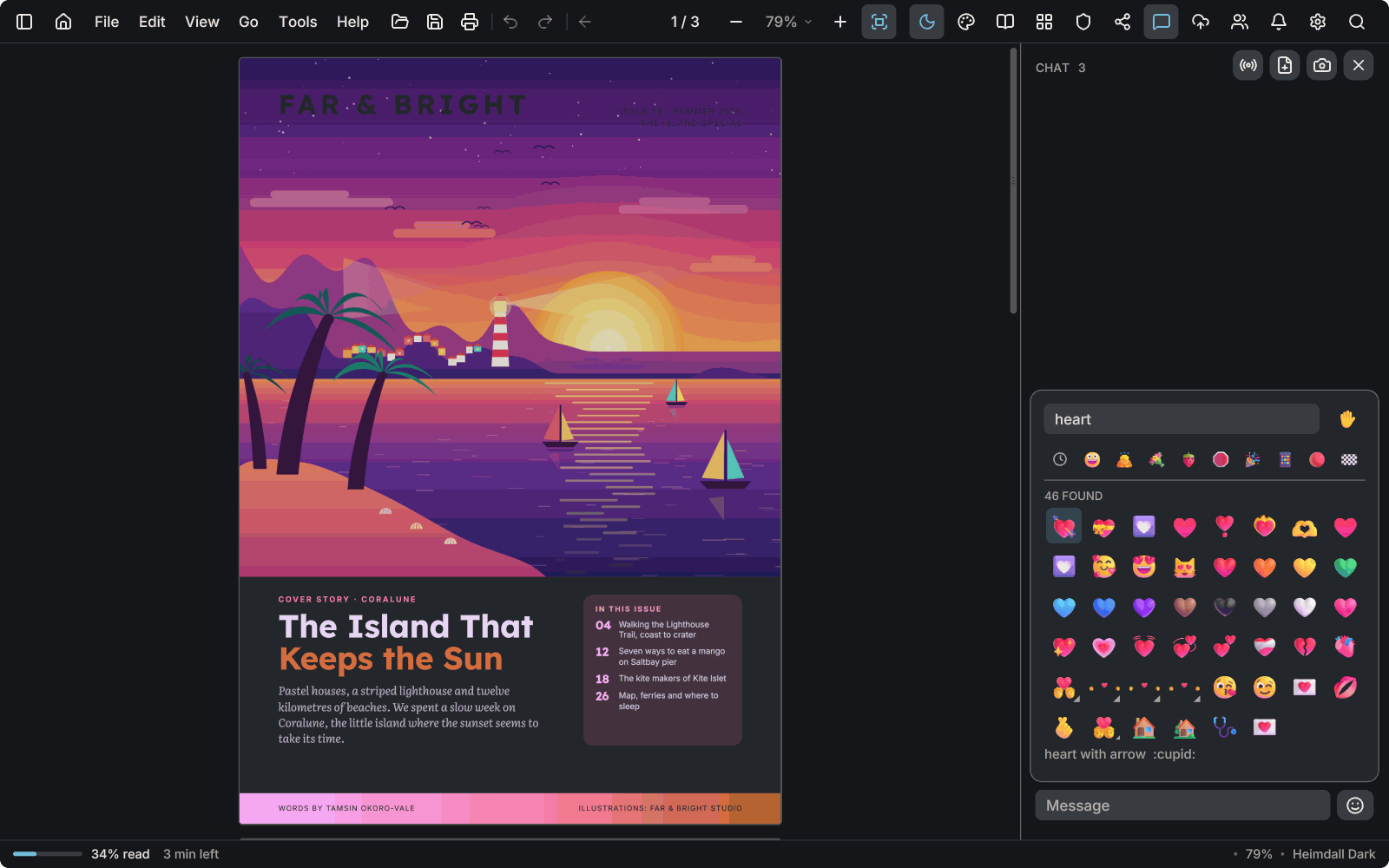
Emoji are drawn in colour in chat and in other text in the program. The chat has a picker you can search by name, with skin tones, people and flags. A reaction can be any emoji, and a message of emoji only is shown large. The colours come from a pack you download once in Preferences, Fonts; until it is installed, emoji are drawn as outlines.
Chat is part of Pro -
Panels in their own windows
Print, Share, Scan, Security and the other panels open as windows you can move to another monitor, while the document stays where it is.
Also new
Reading and search
- CMYK colours are closer to Acrobat's, and CMYK pictures are no longer shown as negatives.
- Find marks words with accents, ligatures and letters such as ł, İ and ß, in any language, in the list and on the page.
- Documents with letters such as ş, ü or Ł in their names open when double-clicked in Explorer.
- Pictures from Adobe's CMYK JPEG writers are shown as they are, no longer as negatives.
- Find and replace in one bar: a second row under the search field with Replace and Replace all (Ctrl+H), one Ctrl+Z for each.
- On a scan, the replacement is painted into the picture and the old word is removed from it; the new lettering may not match the original, and Ctrl+Z brings the page back.
- Reading scans: a check marks the reader in use and a circle on the other switches to it; an option makes scans searchable when they open.
- Search results list every match with its surrounding words in the left panel.
- Scrolling no longer sticks at the end of a document while you zoom.
- Large interface text is clearer, and greyed text keeps its contrast.
- Copy full path is in the right-click menus of a document.
Documents and windows
- New window (Ctrl+Shift+N), tabs torn off into windows, and sessions that remember every window and its place.
- Opening several documents at once from Home or the Open dialog puts each in its own tab.
- Drag and drop works in more places: pages out of the thumbnails as a PDF, and tabs out as their file.
Copies and security
- Compress PDF and PDF/A-1b, -2b and -3b copies, with an estimate, a check and a stop.
- ZIP copies with an optional password and a passphrase generator.
- Redaction word lists, with every string checked in the copy afterwards.
Checking and structure
- Bates numbering from Tools › Number pages, and as a batch step that continues from file to file.
- Tools › Preflight: PDF/A, print shop and other readers, with findings by page and safe fixes in a new file.
- Tools › Inspect: metadata, structure, tables to Excel, bookmarks from headings and repair.
- Tools › Accessibility and the Tags panel: PDF/UA checks, tag editing and automatic tagging as a first draft.
Making it yours
- A theme editor with a live preview, and a gallery of community themes that you can browse, install and share.
- The tool palette can sit on the right as well as the left.
People and accounts
- A cloud document can be as large as your storage: no 200 MB limit, with a plain message of what is free before it uploads.
- Contacts with requests, type-ahead when you invite someone, and who can see you online.
- Pictures for people, end-to-end encrypted.
- Sign in on a new computer with the e-mail code alone.
Formats
- No Office needed: DOCX, RTF, DOC, ODT, OpenOffice and StarWriter documents are read and laid out by AntiPDF itself, and a PDF can be exported to Word, OpenDocument and RTF (File › Export as).
- Word documents through a full document model: equations, charts, SmartArt, vertical and right-to-left text, EMF and WMF pictures, linked pictures and ink.
- Word 2003 XML, HTML, MHT and RTF documents open as Word documents do.
- Comic archives: CBZ, CBR, CB7 and CBT, with ComicInfo, manga direction and double pages.
- Archives read member by member without unpacking: ZIP, 7z, tar and RAR 1.5 to 5.
Automation and service
- The Batch window and a local automation port.
- The service can upgrade without dropping live sessions.
- When the graphics driver cannot draw, AntiPDF draws with the processor, and on a very slow computer smooth scrolling and zoom can be turned off in Preferences.
Fixed
- A crash when dropping a file onto Compare while documents were closing.
- Hidden panel windows kept their memory.
- Text in Print, Scan and Share wraps instead of being cut.
Thank you to everyone who sent a bug report, a crash report or an idea. Most of this list started as a message from you.
1.0.4 October 8, 2026
- PDF files get their own icon in Explorer, a page with a red PDF label and the AntiPDF badge, so your documents no longer look like the app. Form data and the other documents AntiPDF opens get matching icons.
1.0.3 October 7, 2026
- Runs on older graphics cards (Vulkan 1.2) and on processors without AVX2, such as many Celeron and Pentium laptops, where it used to close at once.
- When the graphics driver resets, for example after sleep, AntiPDF says so and starts again on the same document instead of vanishing.
- Fixes crashes with damaged or unusual PDFs, very large scans, closing a scanned document while it is still being read, and files on OneDrive, network or USB drives.
- If AntiPDF ever does close unexpectedly, it says so and saves a crash report; the next time it starts it asks whether to send it to us.
1.0.2 October 7, 2026
- Fixes a crash when going Home and opening another document.
- Fixes markup from a live session landing in a document opened just after it, and a chat message that could stop the app.
1.0.1 October 7, 2026
- AntiPDF 1.0, now in the Microsoft Store.
- Original and Original Dark themes: pages exactly as the PDF has them.
- Sharper, cleaner text, and pictures that show their pixels when you zoom in.
- Sharing: choose who may share with you, block people, and report what should not be there (see the sharing and chat rules).
- Five bright sample documents on Home after installing, to try every tool on.
The first release. Free: reading, search, 35 themes that recolor the page, markup, page editing and organizing, text recognition for scanned pages, the Scan window and printing, with no ads, ever. Pro adds redaction, passwords, signatures, watermarks and end-to-end encrypted sharing.